How To Install And Run Windows 10 From a USB Drive.


Install an operating system on a bootable USB drive, and you can take your whole computer with you – almost. Granted, you still need a PC or laptop to plug it into, but it is a great way to carry your favorite programs and essential data wherever you go. You can access them on someone else’s PC, even if they’re not willing to share their login credentials with you.

Install Windows on a USB drive Despite its power, Windows actually has a fairly conservative system requirements and it will happily live on drives as small as 16GB (for the 32-bit version) or 32GB (for the 64-bit edition).

How To Install And Run Windows 10 From a USB Drive.

Step 1: At first, open Windows10 page and download Windows 10 tools by clicking on ‘Download tool now’.


Step 2: When asked whether you want to save or run the linked file, click Run and, once it’s launched, click through the wizard, accepting all the defaults until it asks ‘What do you want to do?’. Click the radio button beside ‘Create installation media (USB flash drive, DVD or ISO file) for another PC’, followed by Next.

Step 3: Leave ‘Use the recommended options for this PC’ ticked and click Next again, then select ‘ISO file’ and click Next. Select your Downloads folder as the destination for the download and click Save.

Note- Tell the Windows 10 Setup tool you’re creating media for another PC.

Step 4: You’ve downloaded an image of the Windows installation disc, now you’ll need a copy of WinToUSB so you can write it to your USB stick.

Step 5: Launch WinToUSB, confirm it to make changes to your system, then click the folder icon to the right of the Image File box.


Step 6: Navigate to your Downloads folder and select the installation file (Windows.iso). Select the version of Windows for which you have a license and click Next.

Step 7: On the following page, select the USB drive on which you want to install Windows from the drop-down menu.

Note- Be sure to select the Windows Installation files you have a license for.

Step 8: WinToUSB will ask you to select a partition scheme. Leave the default selection as it is and click Yes, and the tool will format your USB drive. This will remove all its data, so make sure you back up anything you want to keep.


Step 9: When the format completes, you’ll be asked to select an installation mode. Select Legacy and click Next. WinToUSB will then start installing Windows on your stick.

Step 10: The time this takes to complete will depend on the speed of both your PC and the USB stick – in our case, it was over 30 minutes. When it’s finished, leave the stick plugged in and reboot, making sure your computer starts from the external drive.

So these are the following steps by which you can run Windows 10 from a USB drive.


Booting From External Drive.


Booting from an external drive You’ll need to configure your PC to stop it launching from your regular hard drive by tweaking the settings in your PC’s BIOS (Basic Input Output System) or UEFI (Unified Extensible Firmware Interface).

You can access these by pressing a shortcut key while your PC reboots – often, it’s F10, but the designated key will normally be displayed briefly during booting. If this doesn’t happen, check your manual. 

Navigate the menus until you find an option for setting the boot order, and rearrange the options so that USB has priority, then save the settings and exit. Your PC will reboot, this time launching from the USB drive. 

If you reboot without the drive plugged in, it will resort to the second, third and lower priority options, eventually finding your internal drive again and launching Windows as usual.

How To Record Computer Screen Using VLC Media Player.


Today, there is a number of reasons for which one can require a screen recording software for their computer like someone wants to record a tutorial video or someone want to make youtube videos. And to fulfill this need, you can download a number of free software which are available on the web but what happens when you come to know that your own favorite VLC media player can do the same for you. 

Yes, your VLC the media player can record your pc screen for you and now you don’t have to download and install any external software just for a simple screen recording task.

As we all know that most of us use VLC media player for our computer to play our media file and we all agree that VLC is the king of all media players but there are some many other feature VLC have and most of us don’t know about it. One of its useful features is screen recording-

Steps required to record computer screen using the VLC media player.

To record your computer screen using VLC media player, you just have to follow few steps explain below-


Step 1: Open your VLC media player and go-to media in the upper left corner and under media select Open Capture Device.

Step 1

Step 2: Here you have to select capture Devices, under capture mode you have to set the capture mode to Desktop and set frame rate of 10f/s. You can change the frame rate according to your need but it is best to keep it 10-20f/s. 

Step 2

After setting the frame rate move to play button as shown in the picture below and open the drop-down menu and select Convert.

Note- Under the drop-down menu there is other three option which I suggest you to try later to see some more interesting feature of VLC player. 

Step 3: The next step, you have to set Destination or location where you want to save your video after recording and you also have to create a profile by clicking on the icon as shown in the picture below.

Step 3

Step 4: At first, you have to give a name to your profile (Example – Record1) and set Encapsulation to MP4/MOV.

Step 4

Step 5: Now move to the video codec, under video codec click on the video (see the picture below) then set the codec to H-264 and click on create.

Step 5

After doing all this process now your VLC media player is ready to record your computer screen just by clicking on the start button.


How to Play YouTube Video in the Background using Google Chrome.


Many of us want to know that how to play YouTube in the background of our cellphone and do all another task at the same time but we weren't able to find any good way for it. Whenever we press the power button or minimize button, YouTube stops playing our video. 

There is some app available on Google play to do so but installing an app just for playing YouTube video in the background is not a good way to solve our problem.

Today I am going to tell you how you can use your google chrome browser to play YouTube videos as same as playing music on your cell phone and you can do all other things whatever you want to do with your phone.


Steps to play YouTube in the background of the phone:

Step 1:- At first, go to your Android setting menu and there you find an option named Installed App in which you have to allow for Chrome notification.


Step 2:- Open your Google Chrome or Firefox browser on your Android phone.


Step 3:- You have to open the youtube.com website and search for any video you want to play or better search for any song playlist.


Step 4:-Go to your browser menu ( the 3 dots at the top right corner of your chrome browser) and select the desktop site to open YouTube website in the desktop version.


Step 5:-Select any video that you want to play and Tap the play button and minimize the Chrome browser and do whatever other tasks you want to do.

Wait, what happens, your video stops playing when you minimize your browser right.
Do one last step- Pull down the notification bar of your phone and just tap on the play button that appears. Task complete.


Now its time to use this trick with your phone and enjoy a new YouTube experience and share this trick with other people, so they can also get the benefit of it.  

How To Forced VLC Player to Remember Your Last Played Position.

remember last played postion

Whenever you use VLC media player to watch any video like some movie or something else and due to some other work you stop watching and close it down. After sometime when you come back to continue your watching of that movie then you have to remember the time at which you had left watching or the position from where you want to continue because by default VLC play any video always from starting and you have to find the last position by yourself.

But one thing most of VLC user don’t know that you can force the VLC media player to remember your last played position of hundred most recent video so that you don’t have to worry about it.

Following Steps to do so-

Step 1: At first, open your VLC media player and then open preference under Tools.
You can do the same by pressing Ctrl+ P.

Step 1

Step 2: Inside the Tools-preferences try to find ‘pause on the last frame of a video’ option and below that option, you will find a drop-down menu which is by default set to ask.

Step 2

Step 3: Open that drop-down menu and change that default setting to always and then save it.

Step 3

This two-step process keeps you free from remembering the last played position of any video so you can enjoy it at any time.

How To Convert a Photo of Data into a Spreadsheet.


It’s inevitable your heart will sink when faced with inputting reams of data into a spreadsheet, but a new update to Microsoft Excel for Android is sure to put you in a better mood. 

You can now take a photo of a set of data and convert it into editable rows and columns. It’s even possible to preview the captured data so that corrections can be made before it’s inserted into your workbook.


Following steps to do so-


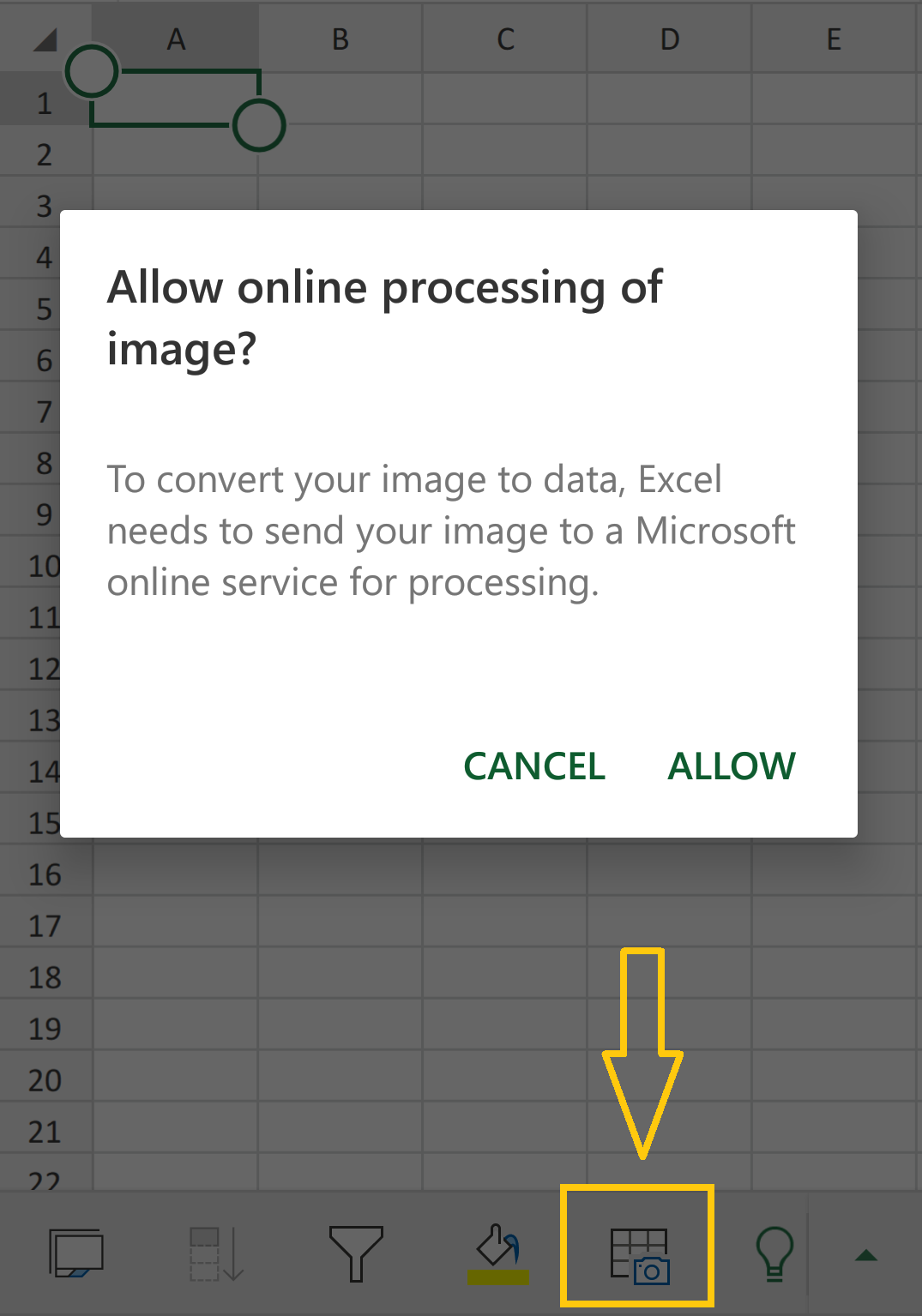
Step 1: To get started, open a new file and tap the ‘Insert Data from the picture’ icon (a tiny image of a camera) at the bottom of the screen.

Step 1

Step 2: Position your mobile’s camera over a set of data and determine what information should be captured using a red rectangle. 

Step 2

Step3: You can then tap Capture, make alternations and tap Insert when you’re happy. 

Step 3

The feature should be available in the iOS app by the time you read this.   

So, just by following these three steps you can convert a photo of data into a spreadsheet.

21 Best What's App Tricks and Tips You Must Know In 2021.

whatsapp tips

More than a billion people across the world now use WhatsApp every day, having moved away from boring and expensive text messaging. But because the service is constantly adding new features, it can be hard to keep up with everything it can do, so in this WhatsApp special post, we help ensure that you’re getting the most from your messages.

We provide clear, step-by-step instructions on how to use its best features, such as video calling and WhatsApp Web, and offer tips on how to beat its biggest annoyances– by silencing incessant group chats, blocking spam and decluttering the homepage. We’ve also included a range of hacks to help you find and share everything faster. Finally, we suggest some tips about security and privacy.

Send any file including hi-res images.

In the past, WhatsApp only let you send PDFs and media files, but you can now send any file type, which makes it a great alternative to sending attachments in emails.

hi resolution file sending in whatsapp

Steps to do so-
1. To send a file, tap the paper clip icon in the chat and choose Documents.
2. A list of documents appears on your device, which you can sort by name or date.
3. Pick the file you want to send and it’ll appear in the chat for your recipient to download.
4. To send an image at full resolution, pick browser other docs’ to browse all the files on your device.


Share multiple contact details.

When you want to share contact details with a friend, there’s no need to send a business card from your Contacts app.

share contacts

Steps to do so-
1. Just tap the paper clip icon in a chat, select Contact and you can choose one or more contacts to share with the recipient.
2. Tap the right arrow and WhatsApp lets you choose which details you want to share for each person.


Edit photos before you send them.

Sharing photos and screenshots is simple enough, but sometimes you might want to crop an image before you send it. WhatsApp lets you do this without having to install additional photo-editing apps.

edit image before sending in whatsapp

Steps to do so-
1. Just tap the paper clip icon, select Gallery and choose the photo you want to send.
2. Next, tap the crop icon and drag the markers to highlight your selection.
3. Tap Done and swipe up to add filters, stickers, and text, or to draw on the image.
4. There’s an Undo button to remove the changes if you’re not happy with the results.


Quote old messages in a chat.

Sometimes it takes a while to respond to messages, by which time a group conversation may have drifted to a totally different subject. In these cases, you can quote the exact message you’re responding to.

reply to old message in whatsapp

Steps to do so-
1. Long-pressing it and then tapping the left arrow on the toolbar. The quoted message appears in a pop-up window so you can compose your response below it.
2. When you tap the Send button, your message appears directly below the quote and the name of the user, so there’s no ambiguity about who you’re responding to.


Share your location with other people.

If you’ve ever tried meeting someone in an unfamiliar place, you’ll know how difficult it can be to explain where you are using a vague description of your surroundings. Thanks to WhatsApp’s location-sharing feature, you’ll never need to do this again.


share location on whatsapp

Steps to do so-
1. To share your location in a chat, tap the paperclip icon and select Location.
2. Approve any permissions that the app asks for, then tap ‘Send your current location’.
3. When the recipient receives your location, they can tap it to launch Google Maps and get directions to find you.


Change your What's app wallpaper.

WhatsApp lets you change the wallpaper displayed behind your chats.

change chat wallpaper

Steps to do so-
1. Just open the menu within a chat, tap Wallpaper and pick an image from your Gallery or Whats App’s Wallpaper Library.
2. If you’d prefer something plainer, try the Solid Colour or No Wallpaper options. Note:- that changing the wallpaper only affects your own chats and not your recipients’.


Assign notification tones to What's app groups.

You can set custom notification tones for your group chats, so you instantly know if you’ve received a message from a particular set of friends –without needing to look at your phone.

tones to whatsapp group

Steps to do so-
1. Open a group chat, tap the menu button and choose ‘Group info’, then tap ‘Custom notifications’ and tick the box to ‘Use custom notifications’.
2. You can then pick from a range of notification tones; choose whether your phone vibrates or not; and decide whether it displays a pop-up notification.


Change the font size in What's app.

Steps to do so-
1. To change the font size in WhatsApp on an Android device, open its main menu and tap Settings, then Chats and Font Size.

set font size for your whatsapp

2. Here, you can choose from Small, Medium or Large text.
On an iPhone, WhatsApp uses the system font size.
To change this, open ‘Display & Brightness’ from your iPhone Settings, then tap Text Size. You can make the text even larger by opening Settings, General and Accessibility, then tapping Large Text.


Pin important WhatsApp chats.

If you find that important conversations are often pushed down the screen by unimportant you can pin your favorite conversations so they’re always easy to find.

pin important chat in whatsapp

To do this,
1. Long-press the chat you want to keep near the top and tap the pin icon.
2. To unpin a chat, long-press it again and select the pin icon with a strike through it.


Bookmark important messages of What's app.

When someone sends you information such as an address or telephone number, scrolling through reams of messages to find it again can be annoying.

bookmark important message in whatsapp

To avoid this, bookmark the message by long-pressing it and tapping the star icon. When you need it again, select ‘Starred messages’ from the main menu to view all your bookmarked messages.


Find every link you’ve ever shared on your What's app.

If you’re looking for a link in a message that you didn’t start, use the following trick.
list of whatsapp share link

To do so-
1. Go to the appropriate chat and tap the three-dot button.
2. Select Media, then Links to scroll through a chronological list of all the links shared between you and that contact.
3. You’ll also see tabs for Media and Documents, which make it easier to find files you’ve shared with that contact.


Add chat short cuts to your home screen.

You can add a home-screen short cut to your favorite chats, for quick access.

chat shortcut in whatsapp

To do so-
1. Open the chat you want to add a shortcut for, tap the menu button, then select More and ‘Add shortcut’.
2. An icon appears on your home screen, which you can move to a chosen position.


Stop anyone knowing you’ve read their messages.

If you’d rather people didn’t know when you’ve read their messages, you can turn off the option that tells them.

hide seen in whatsapp

To do so-
1. From WhatsApp’s Settings menu, select Account and Privacy, then untick the box for ‘read receipts’.
Bear in mind that if you turn this feature off, you won’t be able to see when other people have read your messages either.


Back up chats and media files on What's app.

These days, you can back up pretty much anything on your phone to the cloud, and WhatsApp chats are no exception.

set whatsapp backup

To set WhatsApp to back up to Google Drive.
1. Open the app’s main menu and select Settings, Chats and ‘Chatbackup’.
2. Tap ‘Back up to Google Drive’ to choose how often the app saves backups, or select the green Back Up button to back up immediately.
3. Select a Google account and tap ‘Back up over’ to specify whether WhatsApp can perform backups over ‘Wi-Fi or cellular’ or only Wi-Fi.
4. If you want to include videos in the backup, tick the appropriate box. When you get a new phone, you can restore WhatsApp chats from your Google Drive backups


Change who can see your private information.

From the Privacy menu in WhatsApp’s Account Settings, you can also choose who is allowed to see your personal information, including your profile picture, status and when you were last online.

privacy settings

To do so-
1. For each option, you can choose Everyone, ‘My contacts’ or Nobody. It’s a good idea to use ‘My contacts’ in most instances, otherwise, anyone with your phone number can see when you were last online.
2. It’s also worth pointing out that setting the ‘Last seen’ option to ‘Nobody’ means you won’t be able to see when any of your contacts were last online.


Add two-step verification in What's app.

Two-step verification adds another layer of security to your account by asking for a six-digit PIN to verify your phone number on WhatsApp, whenever it’s installed on a new device.

verification in whatsapp

1. To turn it on, open Settings, then Account and select ‘Two-step verification’.
2. Tap Enable and enter your PIN, then tap Next and enter it again to confirm.
3. Tap Next once more and you’ll be asked to enter an email address, to which you can send a link that’ll reset your PIN if you forget it.


Password-protect WhatsApp.

WhatsApp has no built-in password protection for your chats, but you can add a layer of security on an Android phone by installing a third-party app such as AppLock.

This handy app lets you keep snoopers at bay by locking apps with a password, PIN or fingerprint. You can add another layer of security by enabling Advanced Protection, which stops persistent spies from uninstalling AppLock.


Get alerted when someone changes the device.

You can set WhatsApp to alert you if a chat’s end-to-end encryption key has changed. This normally indicates that the recipient has reinstalled WhatsApp or transferred it to a new device, so you can simply ask them to confirm that they know why a new key has been issued.
security

1. To enable the feature, open Settings, tap Account and Security and make sure that ‘Show security notifications’ is turned on.


Stop people reading your message notifications.

If you have an iPhone, you can receive notifications for new messages without displaying their content on screen. Just open the app’s Settings menu, tap Notifications and toggle the switch for Preview to off. You’ll now see the name of the contact in your notifications but not the message.


On Android phones, there’s no option to block previews from WhatsApp, but you can block WhatsApp notifications altogether by opening Android Settings, then select Apps and WhatsApp. Toggle ‘Block all’ to On and you’ll never get caught out by messages appearing on the screen.


Silence annoying group chats.

If you’re often distracted by WhatsApp group chats, try muting them.

mute group notification

To do so-
1. Open the offending chat, tap the three-dot button in the top-right corner and select ‘Mute notifications’.
2. You can silence the chat for eight hours, one week or one year, and untick ‘Show notifications’ to stop notifications appearing.
3. If you change your mind, simply select the menu button again and choose Unmute. You can also mute conversations with individuals by opening the appropriate conversation, tapping the menu button and selecting ‘View contact’.


Set Fingerprint Lock.

Fingerprint lock is a very new update of WhatsApp in which you can set a fingerprint lock on your WhatsApp App.

Whatsapp Fingerprint Lock

To do so-
1. Open your WhatsApp and click on the three dots in the upper-right corner and open Settings.
2. Inside Settings, click on Account > Privacy and scroll down inside the Privacy section.
3. Click on Fingerprint Lock and turn on 'Unlock with fingerprint'.
4. Set your fingerprint and set Automatically lock time. Done.
You can also choose that you want to show a message and sender in the notification bar or not.


So, these are 21 Whatsapp tips which I know and if you also know such whats tips, share them in the comment section below.

How To Download YouTube Video Without using Any External Software.


Today, YouTube is the place where we spend most of our time every day. As we all know that at present YouTube is a sea of video contents and there are numbers of videos are available on every interest and categories. Once you enter inside the sea of videos named 'YouTube' and start watching videos of your own interest then sometimes it becomes very difficult to come out of it because YouTube works on some algorithms that it starts suggesting you videos related to your interest and what you do. You just watch them all one after another.  But what to do when you like some video and want to download it to watch them later again. 

There is an option present on the YouTube app that you can save some video to watch them in Offline mode. But what to do when you are on your PC or mobile and want to save that Youtube video. We all know that there are a lot of third-party software and apps like 'YouTube Downloader' which you can install on your PC or mobile and download any YouTube video you want.   

But, Today in this post I am going to tell you a very simple and the easiest way to download any YouTube video on your PC and mobile phone without the use of any third party software and app.

Steps required to Download YouTube Video on PC- 


1. Open any browser o your PC just for example I am using Google Chrome for this process and search for that video that you want to download on YouTube.


2. Play that video for a few seconds and then keep it pause. On top of your browser, you will get Url link of that video. You just have to edit that Url as shown below and then hit enter.


3. After hitting enter you will be redirected to a new tab and there you will find an option to download that video so click on that option and your video will start downloading.


Steps required to Download YouTube Video on Mobile- 


1. Open Chrome browser on your phone and search for YouTue.com and then search for that video that you want to download from YouTube. Click on the three-dot in the upper right corner and select Desktop Mode from the dropdown menu.


2. Now you have to repeat the same process that you had done above process, edit the Url link of that video and press OK.


3. You will be redirected to a new tab and there you will get an option to download that video so just click on it and your video will start downloading. 


You can download any video which is there on YouTube by this method and without using any third-party software and apps.

DON'T MISS

Nature, Health, Fitness
© all rights reserved
made with by templateszoo