How To Enable and Disable Windows Defender Firewall.

Enable and Disable Windows Firewall.

The Windows Firewall is for helping you to keep unauthorized users away from accessing your files and resources on your PC. It is a very important feature of Windows for your computer safety.  

If you don’t have a firewall enabled as part of a paid-for security suite, it’s essential to get the Windows version configured. A firewall keeps out any hackers and malware that try to gain access to your computer through the network, so you should have a firewall enabled by default.

You can check this from the Control Panel. Open Windows Defender Firewall (it used to be Windows Firewall). If it says ‘These settings are being managed by vendor application’ followed by the name of your security software, then everything’s fine. Otherwise, turn it on for Private and ‘Guest or Public’ network.

Enable Firewall in Windows 10.

If your Windows Firewall is not enabled by default then you must enable it. Click the Window key and search for ‘Windows Defender Firewall’ and then press Enter.

Turn on Windows Defender Firewall.

Click on Turn Windows Defender Firewall on or off on the left side of the screen under Control Panel Home.

Turn Windows Defender Firewall on or off

You will get a Customize Settings window, check the circle box to Turn on Windows Defender Firewall for both public network and private network separately. At last click on OK to finish.

Enable Windows Defender Firewall

If you’re having trouble setting up a wireless printer, streaming to a Chromecast, or connecting to another PC or other network device, it may be because the firewall is blocking you.

You can temporarily disable it again after everything is set up and you know it’s working. 

How To Change to Public or Private Networks in Windows 10.

Difference Between public or private network.

When you connect your Windows 10 PC with any Wi-Fi network then Windows classifies a network as either ‘public’ or ‘private’ and uses this classification to apply security features, such as the firewall, and the sharing of hard drives, folders, printers and so on.

Now, the question may come to your mind that what is the difference between ‘public and private’ networks and which network mode you should use. In this article, I am going to answer all your doubts related to this.  

Difference Between Public and Private Network in Windows 10.

Private networks have all sharing options enable, while public networks disable anything that might be a security threat.

Public network hides your PC from other devices on the network and you can’t be used for printers and file sharing. Use this for the networks you connect to when you’re out and about, such as a Wi-Fi network at a coffee shop.

Private network mode is for the network you trust on, such as home or work. In this network, your PC is discoverable to other devices and can be used for printer and file sharing if you set it up.

Change Public or Private Networks in Windows 10.

When a computer connects to a network, the appropriate public or private settings are selected. If you are having problems with sharing files or connecting to printers, it may be because the public network settings have been activated, which locks everything down.

In Windows 10, open Settings (Windows+i) and click ‘Network & Internet’.

Network and Internet

Select ‘Wi-Fi’ on the left, then click the network you’re connected to on the right.

Wi Fi Settings Public or Private


If you’re at home and you trust all the other devices and people that might be connected to your network, select Private in the ‘Network profile’ section. 

Public or Private Networks in Windows

How To Remotely Shut down a PC using Windows Command Prompt.

You can shut down all your PCs from a single Command Prompt window. You’ll need to change a few settings in advance, through.

On any PC you want to shut down remotely, click Start, type ‘services.msc' then press Enter.

Windows Services


Right-click the Remote Registry, select Properties, then select Automatic in the ‘Startup type’ menu and click OK.

Remote Registry


Remote Registry

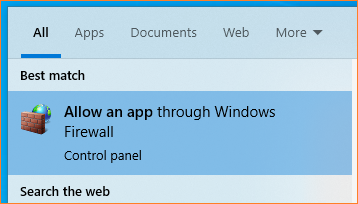
Now click Start again, type allow an app, and press Enter. This will open your Firewall settings.

Firewall settings


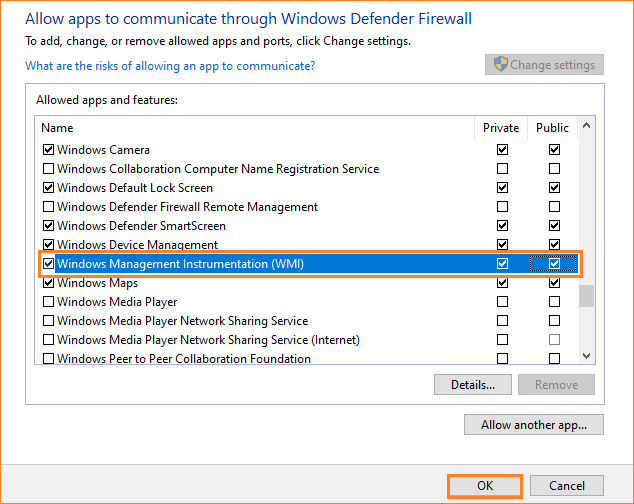
Click ‘Change settings’, scroll to Windows Management Instrumentation (WMI), then tick the box to the left of it and click OK.

Windows Management Instrumentation


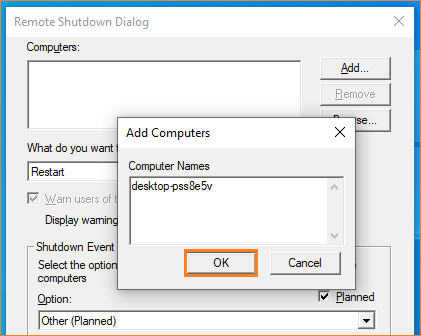
Now, on your controlling PC(s), open Command Prompt and type shutdown /i. This will launch a Remote Shutdown box.

Remote Shutdown Dialog


Click Add, then type the IP address or hostname of the other computer then click OK.

Remote shutdown dialog box

Note: Hostname is a name given to a computer to identifies them on your network. To know your hostname, type ‘hostname’ in Command Prompt, then press Enter.

Select Shutdown in the ‘What do you want these computers to do’ menu, type a message that will appear on the PCs you’re shutting down, then click OK.

Remote Shut down


You’ll need to be signed in to Windows with an administrator account on all computers for this to work.

Type Diacritics and Symbols Using Keyboard and Character Map in Windows.

Diacritics are accents and flourishes, é and Ù for example help guide pronunciation, while symbols are commonly used pictograms such as © and TM that often are not spoken but have specific uses in written text.

In many cases, they are available directly by combining Alt Gr (to the right of the space bar) with a shortcut key. So, Alt Gr+C gives you ©, Alt Gr+T produces TM and Alt Gr+R result in ®. Your keyboard may also be marked with accented characters, which are accessed in the same way.

Note: You can use Ctrl + Alt instead of Alt Gr. It works for all special characters on your keyboard.

On our keyboard, combining the vowel keys with Alt Gr lets us type á, é, í, ó, and Ú, while using it with the 4 key gives us the  symbol.

Character map Windows.


If the character you need isnt available directly, press Start, type map, and click "Character Map". This shows all the characters available in each of your installed fonts. You just have to click the one you want, followed by Select and Copy. Now switch to the program in which you want to use the copied character and press Ctrl+V to insert it.

Follow Raveling Tech on Facebook and Twitter for more such technology related posts.     

DON'T MISS

Nature, Health, Fitness
© all rights reserved
made with by templateszoo