What is The Difference Between Full Software and Portable Software?

full software and portable software
Image Source- freepik


The basic difference which one can assume by the name itself is that the full version is installed directly to the hard drive and accessed by clicking a shortcut. And the portable drive saved to an external drive, such as a USB stick.

The above assumption is correct but it is not the complete answer. In this post, you are going the exact difference between Full software and Portable software and how you can access and use it.

Full Version Software.


When you install software, it copies its files to lots of folders including
C:\ProgramsFiles,C:\ProgramData, C:\Users\YourName\AppData, C:\Windows and more.

It can also make changes to the Registry set itself to start automatically with Windows, run-in the background, and add icons to the desktop and entries to the Start menu. That’s a lot of changes to your PC.

Portable Software.


Portable software is contained in a Zip file or a self-extracting archive that won’t make any changes to your PC. Unzip the software to anew folder in your Downloads folder, portable drive or anywhere else on your hard drive where you can find it easily, and double-click the program to run it.

Because it doesn't make any changes to Windows, portable software is less likely to cause problems and is much easier to uninstall: Simply delete the folder it’s kept in.

When you remove installed software, it often doesn't delete all its files or undo all the changes it made, which leaves detritus on your hard drive and can cause problems.

It’s called ‘portable’ because the folder can be moved, so you could copy it to a USB flash drive or external hard drive if you wanted to save space on your PC, or carry it around and use it on other computers. It's also easy to reinstall on a new computer.

Installed software has better access to windows' resources, so it may offer more features than the portable version. These features may be superfluous, however, and outweighed by the benefits of using portable software.

I hope, this small post helps you to understand the basic difference between Full software and Portable software.

How To Install And Run Chromium OS From a USB Drive.


I am a big fans of Chrome OS, Google’s internet-focused operating system, which only officially ships on its own and third-party Chrome-books. It’s lightweight, boots quickly, and runs apps on the web through the built-in Chrome browser.

Better yet, because your files are stored online, Chromium OS, on which Chrome OS-based, is the perfect mobile operating system for running from a USB drive.


Chromium OS is released by its developers as open-source code, which needs to be compiled before it will run. Fortunately, that's already been done for, if you instead download it from Chromium OS.

Following Steps To Install ChromiumOS on USB Drive.

Step 1
Click the file at the top of the list for the most recent version. As you’ll see from its extension, this has been compressed in 7-Zip format, so you’ll need to download 7-Zip from 7-ZIP (if you don’t already have it) to open it. Save the expanded file to the desktop so it’s easy to find. 


Step 2
In the meantime, download and install Etcher, which performs a similar function to Rufus in that it formats and makes your stick bootable, then installs the operating system on it. 

balena etcher

Step 3
LaunchEtcher, click Select Image and point it at the file you unzipped from the Chromium download. 

Step 4
Click Select Drive and choose your USB stick, then click Flash. Etcher will wipe your stick and create several partitions on it, which Windows will see as unformatted virtual drives.

When the process completes, Windows will offer to format each partition in turn – you should cancel the offer every time.

Step 5
Quit Etcher and any other running programs, but leave the USB stick connected and restart your PC so it boots into Chromium. See the section below for advice on setting your PC to boot from USB rather than its internal drive.

So by following these five simple steps, you can install and run Chromium OS on your USB Drive.

How To Install And Run Linux on a USB Stick.


ubuntu installation

If you want to use Linux operating system for some task but at the same time, you don’t want to replace your current operating system. In this, you can go for the portable Linux operating system which you can create by using a USB stick.

Install Linux on a USB stick

Linux and Windows can live side by side on the same machine if you’re happy to adjust the way your hard drive has been partitioned. However, this requires tweaking your PC’s setup at the most fundamental level, so it’s not for the faint-hearted.

Installing Linux on a USB stick instead lets you boot to it whenever you choose, without putting your data at risk. There are several versions of Linux to choose from, but we favor Ubuntu because it’s one of the friendliest for first-time users.

Step 1
Download a copy of the ISO file from Download Ubuntu by clicking the Download button in the uppermost box (at the time of writing, the latest long-term support version was Ubuntu18.04.3 LTS). Opt to save, rather than run, the download, and don’t open it when it’s completed.

install ubuntu on usb

Step 2
At the same time, download and install Rufus, which is a free tool that converts your humble USB stick into a bootable drive. Launch it and select your USB stick from the first drop-down menu, immediately below Device.

installation of ubuntu on usb drive

Step 3
If you only have one stick inserted, it should already be selected, but if you have both a stick and a USB drive, double-check that the correct device is selected.

 Step 4
On the next line down, select Free DOS from the ‘Boot selection’ menu, then click Select on the right and navigate to the Ubuntu ISO file you just downloaded.

Step 5
Select it and click Open. Finally, click Start – if Rufus warns you that it needs to download two additional files, click Yes to authorize this.

When it’s retrieved them, leave the ‘Write in ISO Image mode’ on the following screen as it is, and Click OK twice.

Step 6 
Rufus will format your USB stick, make it bootable and install Ubuntu. After the process has completed, reboot your PC and when the loading menu appears, select the first option – to try Ubuntu without installing it.

The Linux operating system will launch from your USB stick and you’ll have access to all its features. Any files you create can be saved to the USB stick so they’ll be available wherever you happen to use it.

How To Install And Run Windows 10 From a USB Drive.


Install an operating system on a bootable USB drive, and you can take your whole computer with you – almost. Granted, you still need a PC or laptop to plug it into, but it is a great way to carry your favorite programs and essential data wherever you go. You can access them on someone else’s PC, even if they’re not willing to share their login credentials with you.

Install Windows on a USB drive Despite its power, Windows actually has a fairly conservative system requirements and it will happily live on drives as small as 16GB (for the 32-bit version) or 32GB (for the 64-bit edition).

How To Install And Run Windows 10 From a USB Drive.

Step 1: At first, open Windows10 page and download Windows 10 tools by clicking on ‘Download tool now’.


Step 2: When asked whether you want to save or run the linked file, click Run and, once it’s launched, click through the wizard, accepting all the defaults until it asks ‘What do you want to do?’. Click the radio button beside ‘Create installation media (USB flash drive, DVD or ISO file) for another PC’, followed by Next.

Step 3: Leave ‘Use the recommended options for this PC’ ticked and click Next again, then select ‘ISO file’ and click Next. Select your Downloads folder as the destination for the download and click Save.

Note- Tell the Windows 10 Setup tool you’re creating media for another PC.

Step 4: You’ve downloaded an image of the Windows installation disc, now you’ll need a copy of WinToUSB so you can write it to your USB stick.

Step 5: Launch WinToUSB, confirm it to make changes to your system, then click the folder icon to the right of the Image File box.


Step 6: Navigate to your Downloads folder and select the installation file (Windows.iso). Select the version of Windows for which you have a license and click Next.

Step 7: On the following page, select the USB drive on which you want to install Windows from the drop-down menu.

Note- Be sure to select the Windows Installation files you have a license for.

Step 8: WinToUSB will ask you to select a partition scheme. Leave the default selection as it is and click Yes, and the tool will format your USB drive. This will remove all its data, so make sure you back up anything you want to keep.


Step 9: When the format completes, you’ll be asked to select an installation mode. Select Legacy and click Next. WinToUSB will then start installing Windows on your stick.

Step 10: The time this takes to complete will depend on the speed of both your PC and the USB stick – in our case, it was over 30 minutes. When it’s finished, leave the stick plugged in and reboot, making sure your computer starts from the external drive.

So these are the following steps by which you can run Windows 10 from a USB drive.


Booting From External Drive.


Booting from an external drive You’ll need to configure your PC to stop it launching from your regular hard drive by tweaking the settings in your PC’s BIOS (Basic Input Output System) or UEFI (Unified Extensible Firmware Interface).

You can access these by pressing a shortcut key while your PC reboots – often, it’s F10, but the designated key will normally be displayed briefly during booting. If this doesn’t happen, check your manual. 

Navigate the menus until you find an option for setting the boot order, and rearrange the options so that USB has priority, then save the settings and exit. Your PC will reboot, this time launching from the USB drive. 

If you reboot without the drive plugged in, it will resort to the second, third and lower priority options, eventually finding your internal drive again and launching Windows as usual.

How To Record Computer Screen Using VLC Media Player.


Today, there is a number of reasons for which one can require a screen recording software for their computer like someone wants to record a tutorial video or someone want to make youtube videos. And to fulfill this need, you can download a number of free software which are available on the web but what happens when you come to know that your own favorite VLC media player can do the same for you. 

Yes, your VLC the media player can record your pc screen for you and now you don’t have to download and install any external software just for a simple screen recording task.

As we all know that most of us use VLC media player for our computer to play our media file and we all agree that VLC is the king of all media players but there are some many other feature VLC have and most of us don’t know about it. One of its useful features is screen recording-

Steps required to record computer screen using the VLC media player.

To record your computer screen using VLC media player, you just have to follow few steps explain below-


Step 1: Open your VLC media player and go-to media in the upper left corner and under media select Open Capture Device.

Step 1

Step 2: Here you have to select capture Devices, under capture mode you have to set the capture mode to Desktop and set frame rate of 10f/s. You can change the frame rate according to your need but it is best to keep it 10-20f/s. 

Step 2

After setting the frame rate move to play button as shown in the picture below and open the drop-down menu and select Convert.

Note- Under the drop-down menu there is other three option which I suggest you to try later to see some more interesting feature of VLC player. 

Step 3: The next step, you have to set Destination or location where you want to save your video after recording and you also have to create a profile by clicking on the icon as shown in the picture below.

Step 3

Step 4: At first, you have to give a name to your profile (Example – Record1) and set Encapsulation to MP4/MOV.

Step 4

Step 5: Now move to the video codec, under video codec click on the video (see the picture below) then set the codec to H-264 and click on create.

Step 5

After doing all this process now your VLC media player is ready to record your computer screen just by clicking on the start button.


How to Play YouTube Video in the Background using Google Chrome.


Many of us want to know that how to play YouTube in the background of our cellphone and do all another task at the same time but we weren't able to find any good way for it. Whenever we press the power button or minimize button, YouTube stops playing our video. 

There is some app available on Google play to do so but installing an app just for playing YouTube video in the background is not a good way to solve our problem.

Today I am going to tell you how you can use your google chrome browser to play YouTube videos as same as playing music on your cell phone and you can do all other things whatever you want to do with your phone.


Steps to play YouTube in the background of the phone:

Step 1:- At first, go to your Android setting menu and there you find an option named Installed App in which you have to allow for Chrome notification.


Step 2:- Open your Google Chrome or Firefox browser on your Android phone.


Step 3:- You have to open the youtube.com website and search for any video you want to play or better search for any song playlist.


Step 4:-Go to your browser menu ( the 3 dots at the top right corner of your chrome browser) and select the desktop site to open YouTube website in the desktop version.


Step 5:-Select any video that you want to play and Tap the play button and minimize the Chrome browser and do whatever other tasks you want to do.

Wait, what happens, your video stops playing when you minimize your browser right.
Do one last step- Pull down the notification bar of your phone and just tap on the play button that appears. Task complete.


Now its time to use this trick with your phone and enjoy a new YouTube experience and share this trick with other people, so they can also get the benefit of it.  

How To Forced VLC Player to Remember Your Last Played Position.

remember last played postion

Whenever you use VLC media player to watch any video like some movie or something else and due to some other work you stop watching and close it down. After sometime when you come back to continue your watching of that movie then you have to remember the time at which you had left watching or the position from where you want to continue because by default VLC play any video always from starting and you have to find the last position by yourself.

But one thing most of VLC user don’t know that you can force the VLC media player to remember your last played position of hundred most recent video so that you don’t have to worry about it.

Following Steps to do so-

Step 1: At first, open your VLC media player and then open preference under Tools.
You can do the same by pressing Ctrl+ P.

Step 1

Step 2: Inside the Tools-preferences try to find ‘pause on the last frame of a video’ option and below that option, you will find a drop-down menu which is by default set to ask.

Step 2

Step 3: Open that drop-down menu and change that default setting to always and then save it.

Step 3

This two-step process keeps you free from remembering the last played position of any video so you can enjoy it at any time.

How To Convert a Photo of Data into a Spreadsheet.


It’s inevitable your heart will sink when faced with inputting reams of data into a spreadsheet, but a new update to Microsoft Excel for Android is sure to put you in a better mood. 

You can now take a photo of a set of data and convert it into editable rows and columns. It’s even possible to preview the captured data so that corrections can be made before it’s inserted into your workbook.


Following steps to do so-


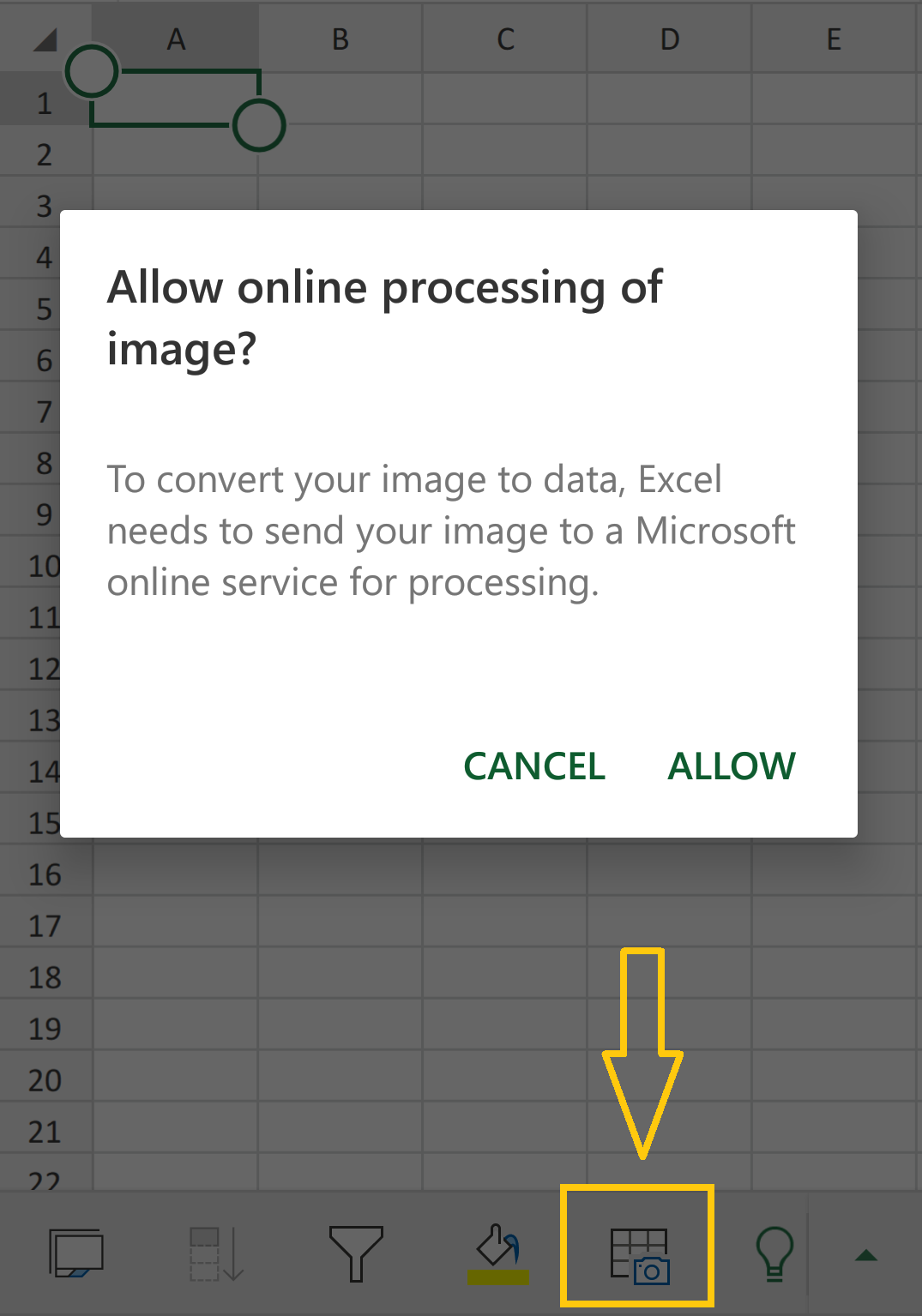
Step 1: To get started, open a new file and tap the ‘Insert Data from the picture’ icon (a tiny image of a camera) at the bottom of the screen.

Step 1

Step 2: Position your mobile’s camera over a set of data and determine what information should be captured using a red rectangle. 

Step 2

Step3: You can then tap Capture, make alternations and tap Insert when you’re happy. 

Step 3

The feature should be available in the iOS app by the time you read this.   

So, just by following these three steps you can convert a photo of data into a spreadsheet.

DON'T MISS

Nature, Health, Fitness
© all rights reserved
made with by AlgoLesson