How To Add Chat Shortcuts to Your Home Screen in WhatsApp.


add chat shortcuts to home screen

We all use WhatsApp and have a long list of WhatsApp contacts but only a few of them are for regular use and rest are used only for some purpose.

So instead of putting yourself in trouble finding your regular use contact in that long list, you can add chat shortcuts to your home screen for the frequent user.

WhatsApp support this feature of adding chat shortcuts for your favorite WhatsApp contacts to the home screen of your device.   


The Following Steps to do so-


Step 1: Open your WhatsApp App on your Device.

Step 2: Open the contact which you want to add to your home screen and click on three dots (menu button) in the upper right corner.


Step 3: Click on More and then click on Add shortcut.


You can also perform this same task by another method. To do so-

Long press on the contact which you want to add, click on three vertical dots and then click on Add chat shortcut.


By these methods, you can easily add your favorite WhatsApp contact to the home screen chat with them directly from the home screen.

How To Add Auto-play YouTube Video in Blogger Post.


A video add more value to the post and help your visitor to understand the post much better. Adding a video to a blog post can help you to bring more traffic to the post. Google search engine also gives more priority to video content compared to text.

Adding an auto-playing video attract visitor much faster and increase engagement with the post which helps you keep the low bounce rate of the site. As a blogger we all know how all these things can affect the ranking of our site in Google search result.


Following Steps to Add Auto-play Video to a Blog Post. (Blogger)

Here I am going to use YouTube as a source for the video content so before performing the following steps make sure that you had already uploaded that video on your YouTube channel.

Step 1: Open your YouTube channel and select the video which you want to add from the list of uploaded videos. Play the video.


Step 2: Click on the Share button below the video. A pop-up window will appear with different share option to choose from.


adding auto-play video to blogger


Step 3: Click on Embed code inside Share a link section.


embed code for youtube video

Step 4: Copy the entire Embed code from the box (use Ctrl + A & Ctrl +C) by pressing the Copy button shown below.


add auto-play video to blogger

Step 5: Open your blogger account dashboard and open the post in which you want to show this video. Open the post in HTML form.


add auto-play video to blogger

Step 6: Past the Embed code where you want to show this video (above the post, between the post and below the post) and add small code “?autoplay=1” between the Embed code to auto-play the video
Example Embed Code-

<iframe width="560" height="315" src="https://www.youtube.com/embed/PK6VY0zInMM?autoplay=1" frameborder="0" allow="accelerometer; autoplay; encrypted-media; gyroscope; picture-in-picture" allowfullscreen></iframe>


add auto-play video to blogger post


Step 7: Click on Publish to publish the post and you can see that your video get successfully uploaded. 

add auto playing video to blogger


You can also, align the video at the center just by using the Alignment option from the blogger menu bars above the post.


If you are finding any problem in understanding or during the process, please do comment in the comment section below.

How To Add a Recovery Phone Number or Email Address To Your Google Account.


add recovery information to google account

Setting up a recovery phone number or email address is important because it helps you to recover your Google account if you get locked out for some reason. You can set your own or some other person phone number or email address on which you can trust.

Why it is so Important to ADD Recovery Information?

Recovery phone number and email address can help you in resetting your password in some serious situations like you forgot your password, you lost your devices or someone else is using your account. Recovery info can you in every worst case to recover your account.

Important- Recovery info must belong to you or some person on which you can trust for it. Like- I use my elder brother email address as my recovery email address.


Watch Video


How To ADD Recovery Email Address To Google Account.

Step 1: Open you're browser and go to your Google account.

Step 2: From the left navigation panel of your Google account, click on Personal info.

recovery info setting

Step 3: Inside Personal info, you have to search for Contact info section in which you can see your Recovery email and phone number.
Now add or change your recovery email address and phone number one by one.

recovery info setting for google account

Step 4: Set recovery email address, click on Email and then click on ADD RECOVERY EMAIL. You may ask to sign-in again, just sign-in and click on ADD RECOVERY EMAIL again.

add google account recovery info


Step 5: Enter your recovery email address and click on Done.


How To Edit or Remove Recovery Phone Number of Google Account.

As you all know that creating a Google account require a phone number and by default this phone number is used as a recovery phone number for your Google account but if you want you to edit or remove this number for the Google account.

Open your Google account and click on Personal info from the left navigation panel. Inside Personal info, search for Contact info section in which you can see your recovery email address and phone number.

add recovery phone number to google account

The phone number showing in this section is the number which is used to create your Google account. Select the phone number and then click on the small arrow icon (right side on phone number) shown in the picture below. 

recovery info setting in google account

At the bottom under USAGE section, click on Account recovery


You may ask to sign-in again. Now here you can edit and delete your recovery phone number for your Google account

recovery phone number in google account

Read More-

How To Remove Edge as a Default Browser In Windows 10.

setting chrome as windows 10 default web browser

As it is known that Microsoft Edge is the default web browser which is recommended for Windows 10 but you can change its setting for the default web browser. As Chrome browser is one of the most popular web browsers so in this post I am going to explain to you that how you can set Chrome as a default web browser in Windows 10.

Remove Edge as a Default Web Browser.

Step 1: Open your Windows 10 desktop and click on Start Menu in the lower left corner.


setting chrome as default browser

Step 2: Click on Settings.


setting chrome as a default browser in windows 10

Steps 3: Under Windows settings, click on Apps.
If you are not getting this option here, you are using an older version of Windows 10 then you may find this option under System.

setting chrome as windows 10 default browser

Step 4: Click on Default apps from the listed option on the left side.


setting chrome as default web browser

Step 5: At the bottom, under "Web browser", you can see the default web browser for your Windows 10. Click on it and choose Google Chrome from the pop-up list of all web browser.

setting chrome as a default browser for windows


You can set any web browser as a default web browser in Windows 10 by this process. 

If you want to add Chrome to your taskbar then hold right click on it and click on Pin to taskbar.  

How To Send a Confidential Email in Gmail.

send confidential email in gmail

Every day we send and receive many emails and most of us use Gmail (Google Email) for sending our emails. Many times you send some important and confidential details through email and thinking to have a passcode on it but how many of you know that Gmail actually has this feature of sending a confidential email.

What Is The Benefit of a Confidential Email?

You can send a message or attachment with Gmail confidential mode which helps you to protect your sensitive information from unauthorized access. You can also set an expiry date for the email or remove the access at any time you want. The receiver of a confidential email cannot download, copy, print or forward that email.


But one thing you must keep in mind that the receiver can take a screenshot or photos of your confidential email.   

How Confidential Email Work.

You can also send confidential email in two different modes “No SMS Passcode” and “SMS Passcode”. 
In No SMS Passcode, the receiver does not need any passcode to read the email but in SMS Passcode, the receiver has to feed the OTP which the receiver gets on his/her mobile number set by the email sender.


How To Send Confidential Email in Gmail.

Here are the following steps to do so-

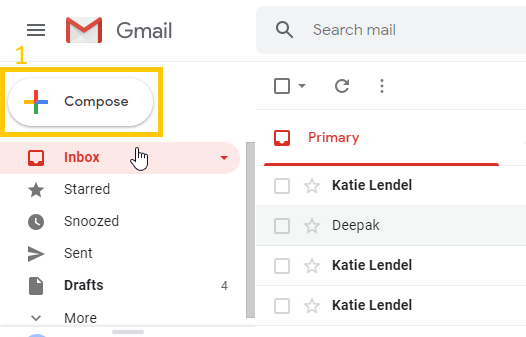
Step 1: Open your Gmail account of your PC browser and click on Compose.

compose a confidential email

Step 2: Compose the email which you want to send and click on Turn on confidential mode.

send a confidential email in gmail

Step 3: Set an expiry date for the email. After the completion of expire date, the email gets vanish from the receiver Gmail inbox.

set expiry date confidential email

Step 4: Choose any one Passcode mode-
  • No SMS Passcode- Recipient well able to open it directly.
  • SMS Passcode- Enter recipient proper phone number (not your  phone number) because recipient have to feed an OTP from the given number to read the email.
set passcode for confidential email


Step 5: Click on Save.
Step 6: Enter the recipient phone number and click on Send

recipient mobile number for confirm code


The recipient will get a confidential email like this (shown in the picture below) and have to verify identity.

open confideential email

You can also remove the access of the confidential email at any time you want even before the expiry date. To do so-

O1. Open your Gmail.
02. Click on Sent on the left side.
03. Open the confidential email section.
04. Click on Remove access.

Conclusion

The recipient of the confidential email cannot download, copy, forward or print the confidential email but one can take a screenshot or photo of that email.

How To Clear Browsing Data from Google Chrome.


If you are a Chrome user and use Google Chrome for browsing on the web then you must know that chrome keep some of your details like, saved password, download files, the page you visit, cookies from website and auto-fill entry.

It may happen sometimes that you are sharing your PC with your friend but you don’t want to show your browsing details then you can clear the browsing data from the Chrome browser.


The data that get deleted after clearing your browsing details from Chrome are-

  • Browsing history- Clear browsing history from all sign-in devices.
  • Cookies and other site data- signs you out of most site but you stay sign-in to your Google account.
  • Cached images and files- It may increase the loading time of some site on your next visit.
  • The shortcuts to some pages that are saved in New Tab get removed.
  • No predictions for any website in the address bar.
  • Web addresses are get removed from the History page.
  • Your download history (list of files you have downloaded) get deleted but the actual file remains inside your computer.
  • Your auto-filling details which include your address, phone no, credit card details are deleted.

There are more other data like content settings and hosted app data also get deleted after clearing your chrome browser data.

The data that doesn't get deleted-
There are other data that doesn’t get deleted like search history, Google activity and data store by some extensions. But if you wish you can delete them too separately.

How To Delete Your Browsing Data in Chrome. [Windows]

If you are deleting some data like password or history on your computer then it gets removed from other devices using the same Google account.

The following steps to do so-

Step 1: Open the Chrome browser on your computer.

Step 2: Click on the three dots in the upper right corner then click on More tools > Clear browsing data or press Ctrl + Shift + Delete.

clear browsing data of google chrome

Step 3: Choose a time range from the drop-down menu, like Last 4 week or 'All-time'.


Here you will find two sections Basic and Advanced-
Basic –
  • Browsing History.
  • Cookies and other site data.
  • Cached images and files.

Advanced- (also include Basic)
  • Password and other sigh-in data.
  • Auto-fill form data.
  • Site settings.
  • Hosted app data

Step 4: Select the information (options) which you want to remove.

Step 5: Click on Clear Data.


Conclusion

All these data that you remove from your chrome browser also get removed from your other devices sign-in with the same Google account.  

How To Remove Unwanted Ads, Pop-ups and Malware from Chrome.


Chrome user sometimes face problem like unwanted ads, pop-ups, and malware while browsing on the web using Chrome browser and most of the time we ignore them thinking that chrome wants us to see those ads and pop-ups. But all those unwanted ads, pop-ups are not shown by chrome browser, chrome never support such interface which can create a problem for their users.

The problems users a face with chrome browser-


  • Some pop-ups ads get stuck on the browser and hard to remove.
  • The search engine gets changed without your permission.
  • Some unwanted chrome extension gets added automatically to the browser.
  • Many new unwanted tabs get open without any need.


If you are the user who is facing all these problems with your chrome browser then it means you may have installed some unwanted software or malware on your computer.


SOLUTION FOR THE PROBLEM.

Just reset your browser settings to overcome all these problems of unwanted ads, pop-ups and malware.

How To Reset your Chrome Browser Settings.

Step 1: Open Chrome browser on your computer, click on three dots in the upper right corner and open Settings.

reset chrome to remove unwanted ads and pop-ups

Step 2: Under Settings, scroll down and click on Advanced.

remove unwanted ads and pop-ups and malware

Step 3: Scroll down and move to ‘Reset and clean up’, click on "Restore settings to their original default".

reset chrome settings

Step 4: Click on Reset settings.

remove unwanted malware, pop-ups and ads

After resetting your browser settings, all extension might get turned off, turn on only those extensions you trust.

Conclusion

Stay away from ads like you win a contest or you get an expensive copyrighted content for free because all are trick to download unwanted software or extensions.  

How To Install a Template in Blogger (Blogspot) Blog.


Blogger provide a free platform for everyone to start your first blog and most of the successful bloggers had started their journey with blogger.com and later when they start making enough from blogging move to their own domain and hosting. As blogger is a free platform, so resources are very limited and you cannot do everything on it. But for a beginner, blogger.com is best to start a blog.


Why you should use Custom Templates?

Now let’s talk about blogger theme when you create a blog on blogger they provide you few themes to choose from but they are very simple and make your blog look boring. Many Blogspot blogger uses a custom blogger template which is easily available on the internet to download. It is not only simple to use but also gives a better look to your blog.

In this post we are going to learn how to download and install such custom template in blogger.com. We are going to learn two different methods (Method I & Method II) because it may happen that Method I may not work with few templates then try Method II.

How To Install a Template in Blogger (Blogspot) Blog.


Method I
Step 1: Open the browser on your PC and search for free blogger templates, you can see a list of different website which provides blogger templates for free. Make a Preview and download any one template which you like and suite your blog niche.


Website suggestion - www.gooyaabitemplates.com

Step 2: After downloading the templates you will get a .rar file (zipped file). Extract that file inside a new folder (create a new folder). To extract that file, select it and hold right-click then select “Extract here”.


Inside the extracted file, you will get a file with .xml extension. This file is important.

Step 3: Open your blogger account and choose the blog for which you want to change the theme. Click on Theme and then click on Backup/Restore in the upper right corner of that page. A pop-up window will appear with a name Theme > Backup/Restore.


Step 4: Browse that file which you had extracted earlier, inside that file you will find a file with .xml extension, select that file and click on Upload. View your new template by clicking on view blog.


Sometime the above method of uploading a template does not work and you may get an error message as shown in the picture below. In that case try Method II to upload your template.


Method II
In this method you will need the .xml file from the folder in which you had extracted the download template file.

Step 1: Open the extracted folder and select .xml file. Make a right-click on the file and open with > Notepad/Notepad++. Now copy the entire code from notepad by pressing Ctrl + A and Ctrl + C.


Step 2: Open the dashboard of your blogger account, go to Theme and click on Edit HTML.


Step 3: Select and replace the entire code of the box (inside Edit HTML) with the Notepad code by pressing Ctrl +A and Ctrl +V and click on Save theme.


The template has been uploaded successfully, now click on view blog to check the new template. Now you just have to do some customization like arranging the menu bar and social media icons which you can easily do from the layout section of your blogger account.

If you find any problem with this two method then please ask me in the comment section.

DON'T MISS

Nature, Health, Fitness
© all rights reserved
made with by AlgoLesson