How To Stop Notifications Interrupting Your Music in Windows.


Notification Interrupting your music in windows.

When you’re enjoying your favorite music on your headphones, the last thing you want is Windows audio notifications ruining the experience, such as when a new email arrives.

There are two ways to avoid this. One involves lowering the volume of Windows notifications; the other is to divert the audio to your computer’s speakers, not your headphones.

To do either, first, start playing your music on your computer, then click Start, type sound settings, and select the Sound Settings options in the results. You can do the same by Settings > System > Sound.

Stop Windows Interrupting Your Music

Inside Sound settings, scroll down to ‘Advanced sound options’, click on ‘App volume device preferences’.

Windows Sound Interrupting your music

Find the app you’re using to play your music in the list, then select your headphones in the Output box.

Next, locate the Sound app in the list (this controls Windows notifications) and choose whether to output them to your headphones or your computer’s speakers.

Windows 10 Sound Settings

The latter will usually be listed as ‘Speaker/Headphones’ or similar. You can then adjust the volume of the notification using the slider. You can also re-gain all your default settings by clicking of Reset button in the lower-left corner. 


Follow Raveling Tech on Facebook and Twitter for more such technology related posts.

Learn and Make Machine Learning Projects Without Using a single Code.


Make Machine Learning Project Without Using Code.

You don’t need to be a programming genius to get to grips with the basic of machine learning. Indeed, a couple of years ago, Google launched its Teachable Machine, which allowed anyone to use a webcam or files on their hard drive to teach the computer how to recognize patterns in data.

Now, Google has unveiled Teachable Machine 2.0, which again doesn’t require any coding and lets you interact via your microphone. Choose between and Image, Audio and Pose project and, by selecting photos, sounds, or people moving around, the computer can be trained to pick up on the differences telling the difference between a human and a dog. Trained models can then be exported to websites, devices, and apps.


Along with easy-to-follow video tutorials, there are links to three example projects that teach the computer to determine if a banana is ripe, detect simple sounds and recognize which way your head is tilting. Real-life projects are also explored and, for anyone worried about privacy, Google promises that any media you upload or capture remains on your device unless you save a project to Google Drive.

Create a Machine Learning project without Using Code.
To create your own first machine learning project with writing a single line of coding, you have to follow three simple steps.


Step 1: Gather: You have to gather and group your example into classes, or categories, that you want the computer to learn.

Step 2: Train: In this step, you have to train your model, then instantly test it out to see whether it can correctly classify new examples.

To train you model, you can use images, sounds,s or poses which you can capture live using your webcam or microphone.

Step 3: Export: You can export your model for your projects, site, apps, and more. You can also download your model or host it online for free.

There are many different project info available on the website which you can read and get an idea of where you can use machine learning in your own life or to makes other lives better.  

20 Best Features of New Microsoft Edge Browser (2020).

Edge Browser Features and tools.

With a new logo and a brand new look, the new Microsoft Chromium Edge browser is now finally available for the users to download and use. So now what is going to happen to your old Edge browser which is already there on your Windows PC.

When you download and complete the installation process, the old Edge will get replaced by this new Chromium Edge browser with a lot of new features to use. 

In this post, I am describing 20 new features that must try on this new Edge browser and explore which feature you found the most useful for you.

    Install lots more extensions on New Edge.

    One of the (many) complaints about the original Microsoft Edge concerned its lack of add-ons. In the new version, you can download add-ons directly from the Microsoft Store, as well as install any extension from the Chrome Web Store. To add an extension in the new Edge browser-

    Step 1: Click on the top right corner menu button and choose Extensions.

    Step 2: Inside Extensions, enable the option ‘Allow extensions from other stores’ in the bottom-left corner and then click on Allow.

    Step 3: Now, go to the Chrome web store, choose the add-on you want to install and click ‘Add to Chrome’.

    New Edge feature 1

    Customize your New Tab page of the Edge browser.

    You can customize your new tab of Edge browser base on your interest and what you want to see on it. To customize your new tab-

    Step 1: Click on the cog button (settings) in the top-right corner and choose a layout that you want to use.

    Different the layout has different features- Focused (minimal look), Inspirational (adds a background image), Informational (includes news).

    Step 2: You can also add your favorite sites to the Quick Links bar along the bottom of the page by clicking the plus button.

    Customize Edge new tab

    Customize your news feed of Edge browser.

    Edge has a customizable news feed, powered by Microsoft News, which you can view by scrolling down the New Tab page.

    Step 1: You’ll need to have selected either the inspirational or Informational layouts to see the contents. Scroll down on the new tab. 

    Step 2: Once visible, click the personalize tab to select your interests and add or remove categories, so that the content is relevant to you.
    Options include Top Stories, TV, Lifestyle, Celebrities, Entertainment, Money, Technology and Sport.

    Step 3: To hide the news feed, click the cog, choose Custom and select ‘Content off’.

    Customize news feed on new edge browser

    Switch between multiple accounts in the new Edge browser.

    You can set up Edge with different user profiles, to keep what you do online separate from other family members, or have different profiles for home and work. Edge lets you add both local and Microsoft accounts. To use multiple accounts –

    Click the profile button in the top-right corner of the browser to manage your profile settings, browse as a guest (which stops Edge saving your browsing data download history and cookies) and set up additional profiles.

    Use Multiple account in edge

    Kill resource-hungry processes of Edge browser.

    You can use Windows’ built-in Task Manager to kill non-responsive or resource-hungry processes, but Edge, like Chrome and Firefox, now has its own Task Manager that you can use to identify and close problematic tasks and processes, such as memory-hogging extensions that slow your browser. To access it,

    Step 1: Click the top-right menu button and select ‘More tools’, ‘Browser task manager’.

    Step 2: You can sort the list by various criteria and end selected items that are causing trouble.

    Edge Browser Task Manager

    Import browser data from Chrome to Edge browser.

    Microsoft is keen for you to switch from using Google’s browser to the new Edge, so it’s made the transition as painless as possible by simplifying the process of importing your data. To import browser data-  

    Step 1: You can either go to Settings, ‘Import browser data’ and select Chrome in the drop-down menu or you can type edge://settings/import data into the address bar to take you to the same page.

    Step 2: You can choose what to import-bookmarks, passwords, addresses, payment info, browsing history, settings and open tabs.

    Step 3: Click on Import to import all what you have chosen.

    Import browser data from Chrome browser to edge

    Hear web pages read aloud.

    Edge can read the content of any web page aloud, which is handy if your eyesight is poor or if you’re occupied with something else and want to hear the latest news or get through an online article. To hear web pages read aloud-

    Step 1: Once you’re on a page you’d rather listen to then read, open the browser menu and choose Read Aloud.

    Step 2: You can start and pause playback, jump backward and forwards from one paragraph to another, choose a different reading voice and adjust the speed of the playback, making it a little faster will get you through the text more quickly.

    read aloud any web page

    Sync your data across devices.

    New Edge a browser can sync your history, bookmarks, passwords, and other browser data across all your signed-in devices, so you can easily carry on browsing when you switch to another computer, phone, or tablet. To Sync your data across devices-

    Step 1: Open the Settings menu, select Profiles on the left and click Sync on the right.

    Step 2: Click the ‘Turn on sync’ button and choose what you want to include.
    Not all options are available at the moment, but more will be added soon.

    Sync data in edge browser

    Turn websites into standalone apps.

    One new feature we particularly like in the reborn Edge is its ability to turn web pages into standalone apps that you can open and read independently from the browser. To turn websites into standalone apps-

    Step 1: Just navigate to a web page you want to convert to an app, open the browser menu, go to select ‘Install this site as an app’.

    Step 2: You’ll be able to access the new app from the Start menu, as well as directly through the browser menu.

    Create Standalone websites apps

    Block unwanted trackers automatically.

    Internet giants such as Facebook and Google are known to track your every move on the web. Edge offers a tracking prevention feature that aims to stop sites that you aren’t accessing directly from following you around in this way. To manage the feature-

    Step 1: Go to Settings, ‘Privacy and services’(edge://settings/privacy). By default, it’s set to Balanced, which means it will block trackers from sites you haven’t visited as well as harmful trackers, while Strict blocks most trackers but may prevent some sites from functioning properly.

    Step 2: You can allow trackers on certain sites under Exceptions, and see which sites have been blocked to date under Blocked Trackers.

    Step 3: Clicking the ‘View site information’ a padlock on the left end of the address bar shows you how many trackers have been blocked so far.

    Block trackers in edge browser

    Block personalized ads on Edge browser.

    Microsoft can use your browsing history to personalize the ads you see, through this, the feature should be turned off by default.

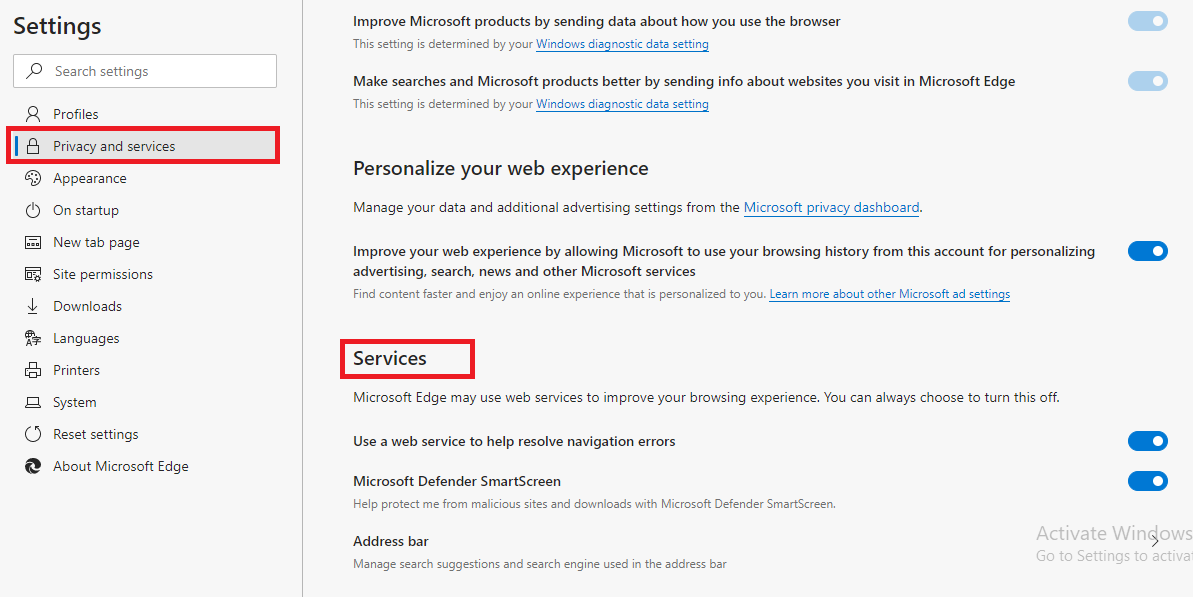
    Step 1: To check it’s not activated, open Settings, select ‘Privacy and services’ and scroll down to ‘Personalize your web experience’.

    Step 2: You can also access the Microsoft privacy dashboard from here, which lets you manage your data and control additional advertising settings.

    Personalized ads on new edge

    Pin sites to the taskbar.

    If you regularly visit certain sites, such as BBC News or Facebook, you can pin them to the taskbar for easy access, then click the relevant button to go straight there. To do so-

    Browse to a site you want to add, open the browser menu and go to ‘More tools’, ‘Pin to taskbar’.

    Pin Your sites to taskbar

    Switch between Light and Dark mode.

    Edge offers a choice of three themes- Light, Dark and System Default.

    Step 1: To switch between them, open the menu, go to Settings and select Appearance on the left.

    Step 2: Click the drop-down menu next to Theme on the right and choose the one you want. The change will be made instantly.

    Use Dark mode in new Edge browser

    Stream videos to other devices.

    Edge can stream videos and other media to a connected device, such as a Google Chromecast. To stream video to other devices-

    Step 1: Find a page containing a video, then open the browser menu, go to ‘More tools and select ‘Cast media to device’.

    Step 2: The browser will look for any compatible devices in range, so you can stream content to them instead of watching videos on your PC.

    Stream videos to other devices using edge.

    Get protection against dangerous sites.

    Chromium Edge, like most modern browsers, helps protect you from malicious sites and downloads. It uses Microsoft Defender SmartScreen for the task, which is enabled by default, but if you decide you don’t want to use the security feature for whatever reason, you can disable it. To get protection against dangerous sites- 

    Open Settings, click ‘Privacy and services, then scroll down and toggle the feature off.
    There’s also an option to block potentially unwanted downloads “that might cause unexpected behaviors”.

    protection against dangerous sites.

    Control website permissions.

    Edge, like Chrome, lets you control exactly which permissions websites are granted.

    Step 1: Open Settings and select ‘Site permission’ on the left. The list of permissions is very long and includes cookies and site data, location, camera, microphone, JavaScript, Adobe Flash, pop-ups, and much more.

    Step 2: Click an option and you should be able to block or allow permission or have the browser ask you before allowing it.

    Site permissions

    Make web pages easier to read in the Edge browser.

    When you find an interesting article on a web page, you can make it easier to read by stripping out ads and other junk.

    Step 1: Click the Immersive Reader button to the right of the address bar to get started (note that this won’t show up on every page).

    Step 2: If you move your mouse to the top of the screen, you can have the page read aloud, adjust its text size, and change the background color.

    Make web pages easier to read

    View PDFs in your Edge browser.

    One of the best features of the original Edge browser was its built-in PDF reader. Thankfully, it’s still here in the Chromium version, along with some useful tools.

    You can jump to a page, zoom in or out, rotate the PDF, draw on it (and erase the strokes afterward), and print or save the document.

    View PDFs in your Edge browser.

    Select text using caret browsing.

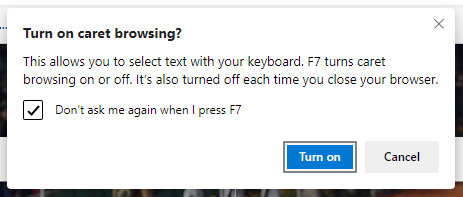
    Caret browsing places an insertion-point cursor wherever you click. This lets you select text from a website using your keyboard, like in a word processor.

    To enable this feature, press F7, and a pop-up message asking if you want to turn on caret browsing. You can tell Edge not to ask this again in the future.

    caret browsing.

    Reset your Edge browser.

    If you’ve played around with the various settings in Edge and find things aren’t working as well as before, you can reset the browser back to its default values (perform a factory reset, in other words).

    Open the menu, go to Settings and select ‘Reset settings on the left, then click the ‘Restore settings to their default values’ link on the right.

    Reset your Edge browser.


    So, these are the 20 features which I found useful and must try on the new Chromium base Edge browser. And if you found any other interesting features while using the new Edge browser, let us know in the comment section below. 


    What is an eSIM? Everything You Need To Know About eSIM.

    What is an eSIM.

    From mini to micro to nano, phone SIM cards have been diminishing in size. The humble SIM card has made due for a long time, yet it presently, at last, seems as though it’s en route out. In this post, you are going to know all about eSIM like, what is eSIM, how it works, what are the advantages of using eSIM and phones supporting eSIM.

      What is an eSIM?

      As the name suggests, an eSIM is an electronic chip version of a SIM card-those tiny pieces of plastic that you insert into a mobile phone so you can connect to a network and use a number. Rather than take the form of a physical item, however, the eSIM is embedded in a chip inside the handset.

      How does eSIM work?

      A standard SIM (short for Subscriber Identify Module) stores an International Mobile Subscriber Identify (IMSI) number that identifies every user on a cellular network. It also saves the authentication key that validates the IMSI and can store contact names and numbers. While eSIMs still identify your user login credentials on a network, they also have the capability for that data to be rewritten over the air.

      What are the advantages of an eSIM?

      When you have an eSIM in your phone, you can switch between mobile networks with ease. There is no need to obtain a physical SIM card for the new provider because it’s simply a case of opening an account and allowing the carrier to reprogram the eSIM with the necessary data. This should eliminate the hassle of switching and make it a more fluid process. There are no demands for PAC numbers and the move should be instant. Any updates to the eSIM can also be completed remotely by the network.
      All About eSIM.

      How secure eSIMs is?

      When you want to switch to another network using an eSIM, everything on the chip is changed to work with the new carrier, including the network authentication keys. The level of security is on a par with SIM cards, according to GSMA, the association of mobile networks. In a white paper, it said: “eSIM provides an equivalent level of security as the removable SIM card”.

      Which phones are supporting eSIMs now?

      Aside from Apple’s iPhone, Google has placed dual-eSIM/SIM capabilities in Pixel 2, 3, XL, 4, and 4 XL phones, while Samsung’s Galaxy Fold allows for an eSIM and a physical micro-SIM card. It won’t be long before more manufacturers climb aboard and we can expect to see a growing number of eSIM-compatible handsets over the coming months and years. 

      So, this is brief information about eSIM which can help you know about eSIM well. Tell me what do you think about the eSIM card in the comment section below?

      How To Translate languages using Google’s Interpreter mode.


      Google Assistant Interpreter mode.

      Google interpreter-mode helps you in communicating with the person who does not know your language, providing two-way translations.

      Suppose you visit some other country like Japan but you don’t know the Japanese language then how you are going to talk with someone or ask for some help. Google’s interpreter mode is going to help you instant translating the sentence you speak to the other language you want to speak. It is very simple and easy to use Google interpreter mode.

      If you’re using an Android phone, Assistant is built-in but, if it’s not set to listen out for “Hey Google”, hold down on the home button until the Assistant pops up before using one of the commands above. And if you have an iPhone, you’ll need to install the Google Assistant app and launch it from the home screen (Download Assistant).

      Launch it with either “Hey, Google, be my Japanese translator”, or “Hey, Google, help me speak Japanese” (or whichever language you need), and hold your phone between yourself and the person you’re talking to.

      Now, speak in English and, when it’s detected that you've stopped talking, Assistant will translate to Japanese and speak the result.

      Google Interpreter mode provide two way translation.

      It will then start listening again and, when it hears a Japanese response, translate it into spoken English. You can carry on like this until you’re both got to the end of your conversation. At that point, just say “stop”, “quit” or “exit”.

      Don’t worry if you’re not traveling in a Japanese-speaking country, Google interpreter works across 44 languages, including Italian, German, Spanish, Mandarin and Japanese, and less common tongues like Estonian, Cambodian, and Telugu. The easiest way to find out if it supports the tongue you need is simply to ask it to be your translator for that language.

      Follow Raveling Tech on Facebook and Twitter for more such technology related posts.

      How To Protect Against Security threats in Google Chrome.


      Protect Against Security threats in Chrome

      The latest version of Chrome, 79 is now available, and it introduces a host of new features, including enhanced security and better protection against phishing scams.

      The three main features of Google chrome 79 updates are:

      The update extends predictive phishing protection to all Chrome users, not just those who have Sync switched on. What’s more, the new browser receives the latest information on threats in real-time rather than every 30-minutes, because “some phishing sites slip through the 30-minute window”.

      To enable this option, visit chrome://settings/syncSetup and switch on ‘Make searches and browsing better’.

      Make searches and browsing better in Chrome

      Chrome 79 also features a built-in password checker that alerts you if one of your username or passwords has been involved in a data breach.

      You may also want to turn on three new experimental Clipboard flags (search chrome://flags for ‘Clipboard’).

      These add a ‘Send to’ option to Chrome’s context menu, making it easier to share content between devices.

      5 Best Ways To Improve Router Signal Strength.


      Boost WiFi Signal

      The best position for your Wi-Fi router is the center of your first floor, away from any walls, allowing the signal to spread out in all directions. Unfortunately, this is also the most impractical place for it. Your router usually needs to be near to your broadband entry point, which is almost downstairs, alongside an external wall and perhaps even behind your TV.

      If you are forced to work within these limitations then you can try some of the methods which I am going to explain in this post. There are many such methods so read this complete post and check which is good for your Wi-Fi router.

      #1. Make sure that your Wi-Fi router is elevated from the floor as this will improve its signal reach. If possible, place it on top of a bookcase. If you can’t move it away from the wall without trailing wires, try sticking a couple of sheets of aluminum foil to the wall behind it. This will help to reflect the signal back into the house.

      #2. The next the thing you can try, use powerline networking kit like the TP-Link 2-Port Powerline Adapter Wi-Fi Starter kit which carries a wired network signal across your home’s electrical wiring and covert it to a wireless access point at the far end.

      TP-Link 2-Port Powerline Adapter


      To set up and use a Powerline networking kit (Powerline WiFi Extender), connect one of the two units to your Wi-Fi router using an Ethernet cable and plug it into a socket elsewhere in your home and the signal will automatically pass between them, with the second device broadcasting wirelessly.

      Note: Powerline networking is limited to your home’s wiring circuit, so it won’t stray into neighbor's homes. This would be a problem if you wanted to extend your network to an end-of-garden office that runs on a separate circuit and fuse box.

      #3. Another thing which you can try is Wi-Fi Range Extender boosts an existing wireless signal so that it travels further. You just have to plug it in towards the edge of your existing area of Wi-Fi coverage and it will create a second network, using the original network name to which it is connected. By default, it will have the same password as the original network.

      Netgear increase wifi signal range

      To connect to either a powerline-extended wireless network or a boosted Wi-Fi signal, simply select the new network name on your PC, tablet, or smartphone, then enter the required password.

      #4. You can also improve your Wi-Fi router strength by using a new antenna. If you want to set new router antennae then first you have to remove your existing router antennae.
      To do so, take a closer look at the router antenna. If they appear to screw in, gently twist them anti-clockwise to unscrew them. Removable antennae let you upgrade to a more versatile antenna that spread your wireless signal and improves coverage, such as TP-Link’s TL-ANT2409A. This comes with a long cable, allowing you to position it for better results such as high up on a wall.

      Change Wifi Antenna and set new one.


      #5. You can also, improve your Wi-Fi signal strength by choosing the best wireless channel for your router. You can read our post on how to change the wifi channel but before doing understand how choosing the best wifi channel can help to improve your wireless signal.

      Each network broadcasts on specific channels, and if you and your neighbors are on the same channel, your devices, and the router will have more difficulty figuring out which data is which and experience a lot of interference with the networks. This could slow your speeds, so it is better to choose a channel with fewer people on it.

      How To Change Admin Password of Your Router.


      The first and the most important thing you should do after setting up a new Router is changing the default admin password. This is very much important because a similar brand router has a similar username and password. If you are not going to change the default password, then someone can easily walk up to your router settings and can access your personal information without you knowing about it.  

      Table of Content:
      • Steps to change the admin password of a Router.
      • Settings you shouldn't change on your Router.  

      If you have never changed the router’s login detail, they will be ‘admin’ for username and ‘admin’ for a password.

      Steps to change the admin password of a Router.

      If your default router password doesn’t change yet, you should change it today. To do so:

      Step 1: Log in to the Control Panel of your router by typing your router’s IP address (usually 192.168.1.1) in the address bar of your browser.
      Some standard IP addresses are:
      • Apple: 10.0.1.1
      • ASUS: 192.168.1.1
      • Belkin: 192.168.1.1 or 192.168.2.1
      • D-Link: 192.168.1.1 or 192.168.0.1
      • Linksys: 192.168.1.1 or 192.168.0.1
      • Netgear: 192.168.0.1 or 192.168.0.227
      For more visit: RouterIPaddress.com 

      Step 2: Log in using the existing password (usually ‘admin’ for username and ‘admin’ for password) and navigate the menus to find the appropriate option, which will usually be found in a system or admin section.

      Step 3: Select ‘Change Router Password’ or similar option may vary for different routers.

      Step 4: Enter your new 'Password' and save the change. You are done.  

      Note: Your admin password is not the same as the password used to connect your PC and other devices to your Wi-Fi network, so you don’t need to make any change to them once you’ve changed it.

      The Settings You Shouldn’t Change on Your Router.

      • 1. Never Change The Broadband login of your Router.

      In this post, I recommend you to change the passwords for your router login and wireless network, but you shouldn’t change your broadband login. Your broadband username and password are assigned to you by your (Internet Service Provider) ISP and if you change them, your internet connection will go down. In case you do so accidentally, contact your ISP.

      • 2. Never Change Your DHCP Settings of Your Router.


      Your router’s DHCP (dynamic host configuration protocol) server is in charge of assigning IP addresses on your network, letting you quickly add new devices. If you turn DHCP off, you’ll need to assign IP addresses to each device on your network yourself. If you need to assign a specific IP address to a device, see my post on how to set up static and dynamic IP addresses to a router. 

      • 3. Never Change Your Incoming firewall Settings of Your Router.

      Your router’s firewall stops devices outside your home network from connecting to your devices. You can create individual rules to allow specific devices to accept incoming connections, but turning the firewall off and allowing all connections will leave your network vulnerable to attack.

      Different Parts of a Router and its uses. Find Help for Router.

      Router Guide

      Today, every single technology we use inside our home or at the office requires an internet connection to work. Starting from our smartphones, tablets, smart speakers and now smart TV all requires a good internet connection to operate-nowadays we can’t even imagine our life for a single day. And the most important gadget which provides internet access to our device is our router. 

        Almost every home as a router and we all use them daily but how many of us actually know about every part of our router and its uses. So, in this post, I decided to give a very short description of every important part of a router. Let’s start with:

        Functions of Different Parts of a Router.

        DSL socket: Router with built-in modems have this port. You can connect your phone line direct to this.

        LAN ports: Most routers have at least four LAN ports. You can use them to cable devices directly to your home network. Wired connections won’t suffer as much interference as Wi-Fi so are typically faster.

        WAN port: It is for connecting separate modem using an Ethernet cable. If you have a separate modem, connect it here rather than using the DSL socket.

        USB port: It can be used to connect a USB device, such as a USB stick. You can use this for network storage. Once set up, all computers on your network will be able to access it, just as they would any other network drive.

        Hard reset: This small recessed button can be used to reset your router to its factory settings. If you can’t remember the login details for your router, it’s worth trying the default username and password.

        Soft reset: Most routers have a button to perform a quick reboot. Turning it off at the wall has the same effect. You have to hold this button for 10-15 seconds.

        WPS button: WPS (Wi-Fi Protect Setup) is a wireless security standard, used mostly on home networks. WPS lets you connect a device to your wireless key.

        SSID Number: The default Service Set Identifier (SSID) is often printed on the router, along with the wireless key required to access it.

        Admin password: Like the SSID, the default password to access your router’s settings page is also usually found on the device or in your instruction manual. You can find them on the router case or somewhere on the router itself (on a label). 
        Full Router Explain
        Different Parts of a Router

        How To Find Help for Your Router?

        Almost every (Internet Service Provider) ISPs provide online help for their routers, and detailed manuals are usually available from router manufacturers when you buy a new router. I have listed the link to the support page of the most popular routers.  

        Popular Router Support Page:


        What to do when you forget Router Login Details.

        If you forgot the login details for your router someday, then you can try the default username and password. You can find them printed on the outer case or at the bottom of your router. For better, you can Router Passwords official website (www.routerpasswords.com ), here defaults for all major routers are listed.

        If this still doesn’t work, it could be because you changed the default login details, which means a factory reset is probably your only option. You can usually do this by holding down the router’s reset button for 10-15 seconds.

        DON'T MISS

        Nature, Health, Fitness
        © all rights reserved
        made with by templateszoo