How To Remove Duplicate Files on Windows 10 PC.

Duplicate file.

Duplicate files on your PC do nothing except consuming hard drive space and making the PC slower. It is easy to inadvertently accrue a vast number of duplicate files-copies of photos, music tracks, videos, documents, and so on.

You can use Duplicate File Finder to search and remove multiple instances of identical items, and the best part of this tool is that it can find duplicate files even if they have different names. It is also capable of removing duplicates from Cloud-storage services like Google Drive and Dropbox.

By default, it searches the main folder on your PC (Desktop, Documents, Music, Picture, and Downloads), but you can specify custom folders if you wish, and have the program skip small files (under 100KB), which are unlikely to be of interest.

Find Duplicate Files and Remove them from Windows.

Download Easy Duplicate Finder for Windows and install it on your computer.

After the installation is complete, open the application and scan the hard drive or SSD using File Search mode.

Duplicate Files Finder.


The scanning process may take time depending upon the number of files your computer hard drive have.

Search Duplicate File.


Once Duplicate File Finder has scanned your system, the program presents its findings. When you’re ready, select your file management preference or click a button to automatically move your duplicates to the trash.

Remove Duplicate Files.


If you accidentally delete those files that you don’t wish to delete, then you can use the “Undo” feature of the app to recover those files.

How To Schedule or Draft Your Tweets from Twitter Web App.

Twitter

Twitter now allows users to schedule tweets right from the Twitter web app to send at a specific time. Now users can also save draft tweets to post them later.

Twitter had originally said it was “experimenting” with the feature back in November, and if you didn’t get access to that feature, you can use Tweetdeck or another third-party service that supported this schedule tweets feature.  

Schedule Tweets to send at a specific time. 

Twitter recently launch Schedule Tweets option to post any tweet at a specific time. However, this feature is only available from the Twitter web app. To use this feature:

Open your Twitter account on the web and compose a tweet, you can see a little calendar icon on the bottom row of icons of the tweet window.

schedule tweet option.


Click on that calendar icon, now you can set Date, Time, and Time zone for scheduling your tweet to send at a specific time. Click on Confirm to save.

Set schedule time and date.


You can also see all scheduled tweets by clicking on the ‘Schedule Tweets’ option from that window. 

Save Draft Tweets on the Twitter desktop. 

Before, the save draft tweets feature was only available on Twitter's mobile app and now you can use this feature on the Twitter web app too.

To use this feature, open your Twitter account on your favorite browser on your PC. Open the Tweet window to write your tweet which you want to save as a draft and click on the cross mark to close the window.

Save Draft Tweet.


A pop-up will appear asking you that you want to save the tweet as a draft or discard it completely. Click on Save.

To reopen your draft tweets open the Tweet window (see image for better understanding) and click on the 'Unsent Tweets' option in the upper-right corner of the window.  


How To Clear Microsoft Store Cache to resolve problems in Windows 10.

Microsoft Store.

If you notice you can’t install or update apps from the Microsoft Store, then there’s likely to be a problem with the Store’s app cache.

Today in this post we are going to look into the different ways by which we can clear Microsoft Store’s cache to resolve these problems without deleting any installed apps.

There are two ways to clear this cache and resolve the problem. 

Clear Microsoft Store Cache with WSReset.exe

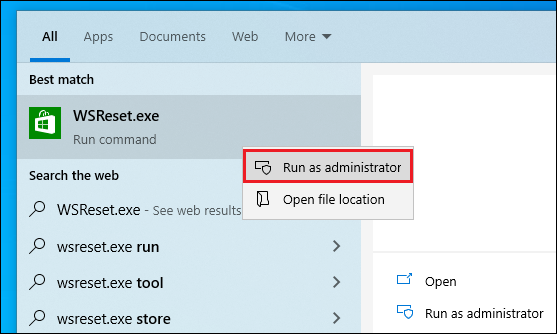
First, click on Start (Windows Key) and search for WSReset.exe using the search box, then press Enter. Right-click on the result appear and select ‘Run as administrator’.

WSReset to clear cache.


An empty Command Prompt window will open and the cache will then be emptied. Once the cache is cleared, this window will close and the Microsoft Store will open on your desktop.

WSReset.exe


Now try to update any present application or try to install any new one to check that it is working fine or not. If this doesn’t resolve the problem, then try the second method. 


Clear Microsoft Store Cache using Registry Editor.

In this process, we are going to use Windows 'Registry Editor' to clear Microsoft Store Cache. To do this:

Press the Windows key, type cmd in the search box, right-click the 'Command Prompt' option, click ‘Run as administrator, then click Yes.

Windows CMD as administrator.


Now type the following command into the Windows Command Prompt: whoami /users (see image), press Enter, then minimize your Command Prompt window.

USER INFORMATION in CMD.


Next, type Regedit into your Windows search field, open your Registry Editor and navigate to the following key: HKEY_LOCAL_MACHINE\SOFTWARE\Microsoft\Windows\CurrentVersion\Appx\AppxAllUserStore.

Registry Editor.


Important: As the next step involve tweaking the Windows registry so it is good to create a backup. To create a backup of the registry, click on File, then Export.

Backup Registry File.


Next, maximize your Command Prompt window again. You’ll see a long value beside your user account name, which should correspond to a folder name under the 'AppxAllUserStore' heading in your Registry Editor.

Clear Cache using Registry Editor.


Search this matching folder name and delete this folder in your Registry Editor (it contains your Windows Store cache). Restart your PC.  

So, these are the two different processes by which you can clear Microsoft Store Cache to resolve app updates or installation problems. If you face any problems during the process, ask me in the comment section below. 

How To Preview Google Chrome Search results.

Preview the Google search results.

Apart from promoted content and ads on top of the search result, position 1 and position 2 web page link contains the most relevant information to your quire, and Google also shows a small description below the search result for you to check whether the inside information is useful to you or not.

People mostly open few top search results in new tabs and start looking at each tab one by one to get the best information and I guess you also do the same but what if Google gives you an option to preview the search results without clicking on any link.  

Preview the Google search results.


There is no official feature in the Google Chrome web browser to preview the search results but you can use an interesting Chrome extension to do so.

Open your Chrome browser and search for Google Results Preview Extension in Chrome Web Store. Click on ‘Add to Chrome’ to download and install that Chrome Extension.

Google Results Preview Extension.


Now, click on the extension icon on the top right corner of the browser and tap on “Turn Results Preview On” and then the extension icon will turn into a free ON icon.

Trun of Preview Extension.

Now search for something on Google then hover your cursor over any of the results to see a large preview. You can even scroll through the preview page without ever leaving Google. 

Google Search Results Preview.


Preview takes a couple of seconds to appear, but it’s a lot quicker than loading the entire page to discover it’s not what you wanted. You can stop preview loading by clicking anywhere on the blank space.  

You also get three additional options below the preview windows, one arrow sign to ‘open link’ that page then the next option to ‘copy the link’ of that preview page, and the last one is about us. 

This is one of the most interesting and useful extensions I ever found, as it saves a lot of time while browsing and looking for the relevant information on different pages.  

How To Tag your Files with Keywords on Windows to find files faster.

Tag Files in Windows 10

Searching a file on Windows is a time taking process and sometimes the Windows search box also fails to help us. Although there are many ways to search your files faster in Windows 10 the best way is to keep your files organized from the beginning by adding “tags” to a file.

You can add ‘keyword tags’ to files for easy organization and later it will help you in searching those files using the tags keyword. For example, you have files (including documents and photos) related to vacation. In that case, adding the tag ‘holiday’ to any related file will group it in the search results for that keyword.     

Tags Files with Keywords in Windows File Explorer.


I am going to use my download folder for an example, as files in this folder belong to nowhere.

Get started by right-clicking the file you want to tag (or select a group of files and right-click one to change the tags on all of them simultaneously) and select Properties from the menu.

Tags Files in Windows 10.

Click the Details tab, then double-click the blank space next to "Tags", below the Value header. Type your tags with a semicolon between each one and press Enter after the last one. You can use any character and even it allows spaces if your ‘tag keyword’ contains two words.


Unfortunately, tagging isn’t available for all file types, so if the Tags option isn’t visible on the Details tab, you’re out of luck. However, it does work on Office documents and it’s a feature we’d like to see Microsoft build on in the future.

Use Tags to find files faster in Windows 10


After adding a tag to some of the files, you can use those tags for searching that file in the Windows search. Tags work in different ways depending on where you are searching for the file.

Suppose, you are inside the folder which contained the file, then you can simply type tag keyword in the search box to get the file. Sometimes, search results also include those files whose name contains a similar text.

Search a tag file on Windows 10


If you are searching the entire PC for the file then you have to use “tags:” operator before the name of the tag keyword in the search box of Windows File Explorer.

Searching file in Windows


You can also apply “tags” operator from Search, Other Properties, and then click on Tags. It is mainly useful to narrow down your performed search result. 
Apply Tags to Windows Search

You can also remove or edit the tags of the file by following the same process as explained above.  

How To Connect Your Amazon Echo to a Bluetooth speaker or headphone.


As we all know, Amazon Echo is a smart speaker that you control with your voice and it is connected to the Alexa voice assistant who listens to your voice commands and performs services like, play music, ask a question, make a call, send and receive messages, provide information related to news, sports, weather and many more. You can also check my post on useful voice commands for Amazon Echo. 

Now, if we talk about Amazon Echo sound quality, it isn’t bad but it is not that loud and you won’t be able to hear it from another room. I prefer listening to loud music Echo speaker is not enough for me so I use to connect my Bluetooth speakers with it for better sound quality.

If you also want to connect your Amazon Echo with nearby Bluetooth devices and headphones, which may have better quality speakers then you can follow the steps explained below.

Connect Bluetooth Device with Amazon Echo.

  • At first, put your Bluetooth device into pairing mode, then open the Alexa app.

  • Tap Settings, then find and tap Device Settings.
Connect Amazon Echo to Blutooth Device


All devices with Alexa built in-including Echos, Fire devices (tablets, TVs, and more), and your phone-appear in a list.
  • Select the Echo device you want to pair from the list.

  • Under Wireless, tap Bluetooth Devices.
Connect Amazon Echo with Bluetooth Device

  • On the next, screen, tap the ‘Pair a New Device’ button.

  • All compatible Bluetooth devices within range appear in a list.

  • Select the one you want to use and complete the pairing process.

Bluetooth Device list

Note: Make sure that the Bluetooth device that you want to connect is not already connected with another device.

Once that’s done, you’ll be able to select the device you require in the future directly from the app’s Bluetooth Settings screen. Or you can simply use a voice command, “connect my speaker” and Alexa will automatically pair with the last Bluetooth device connected to Echo. You can also use the web app at alexa.amazon.com.

How To Enable Dark Mode on WhatsApp Web before the official release.

Dark Mode for WhatsApp Web

The official Dark Theme for WhatsApp Web is not available yet. The feature is still under development and WhatsApp is taking a long time to release the dark mode for the web to ensure bug-free user experience.

As the dark theme is not available, when you open WhatsApp Web on your PC browser, you won’t get any direct feature to enable it. But if you want to know the trick to enable the dark theme on WhatsApp Web before its official release then you can follow our steps explained below. 

The trick was originally discovered by the smart Thales, a member of the WABetaInfo Discord Server Community: it’s really easy to apply, even if you have not good computer skills.

Following steps to enable dark theme on WhatsApp Web:

Open any browser on your PC and open the WhatsApp Web official page. (web.whatsapp.com)

WhatsApp Web


Login to your WhastApp account your the QR code with the smartphone having that same account.

After successfully login into your WhatsApp Web, right-click the mouse outside the chat and click on “Inspect”.

WhatsApp Web Dark Mode


Note: I am using my Chrome browser to apply this trick but you can use any browser for this.

The browser will show the console and code of the page. Search for <body class="web”> inside the code section(use Ctrl + F for searching the code) and replace “web” with “web dark”.

WhatsApp Web Dark Mode

Important:web” is used for the default original theme which we are using and “web dark” is for the dark theme which is soon going to roll out by WhatsApp.

After editing the piece of the code press ENTER to save. You are done!

Now you can enjoy your WhatsApp Web dark mode but note that if you refresh the page open again from a different browser, you need to repeat the process again.  

If don’t want to go through these steps then you have to wait for WhatsApp for rolling out dark mode for the web. Until then try this cool trick and share this with your friends and family.   

Google is rolling out tabs grouping feature to Chrome now available in Chrome Beta.

Chrome tabs group feature

If you are one of those people who use Chrome browser with more tabs open at a time then there is good news for you. Google is rolling out a feature that will allow you to organize your tabs by grouping tabs together. With this new Chrome tabs organizing, you can group your tabs together and label them with a custom name and color. You can also move grouped tabs to reorder them on the tab strip.

Tabs Group in Chrome

The feature is rolling out from the next week but it is now available in Chrome Beta for one who is excited to test this feature now. I already tested the feature in Chrome Beta and for me, it is going to be one of the most exciting features. I usually work with many tabs open together and this feature is going to help me a lot by grouping tabs with a custom name so I don’t have to search the related tabs all around tab strip. 
Tabs Group Feature in Chrome


A pro tip Google suggested in their blog post related to the tabs grouping feature is that you can use emoji as a group name. Tab groups are customizable so you can decide how to use them. And just like regular tabs, your groups are saved when you close and reopen Chrome.

Google Chrome “tab groups” feature will be available for Chrome on desktop across Chrome OS, Windows, Mac, and Linux. Previously, the “group tabs” in Chrome were possible by using a third-party extension. 

Google rolls out new Gmail Search Filters making it easier to search your emails.

Gmail Search Filter

Gmail rolls out new updates adding a search filter for allowing users to narrow down the search results and help them to find a specific email more quickly. The new search filter for Gmail which Google calls “search chips” will appear just below the search box when you search for a particular keyword.

The new “search chips” feature for Gmail has many filter options to choose from, like ‘has attachment’, ‘To me, ‘Advanced search’, and many more. 

Here are the Gmail search chips filter options and their uses:

Any time: This filter option help you deciding how older the email in which you are searching now. There are options to choose from like older than a week, older than a month, older than 6 months, or older than one year.

Has attachment: This filter option helps you to separate those email which has some attachment files like spreadsheet or PDF in it. Earlier this feature was present accessible through Advanced search options in Gmail.   

Is Unread: This feature as the name suggests marks those emails which you haven’t read yet.
 
Gmail search chips
Gmail Search Chips

The filters options can be used in combination to narrow down the searches like if you know how older the email is and having some attachment files in it then you can use the ‘Any time’ and ‘Has attachment’ filter options to get the search result more quickly.

As Google acknowledges that, “we’ve heard from our users that searching in Gmail could be faster and more intuitive”. When the company first announced this “search chips” feature, there was no clarity about it would roll out for non-G Suite customers, but now the feature is live and available for all.

Difference Between Processes and Services in Task Manager in Windows 10.

Process Vs Service

One day, when I was working in my Chrome browser with a lot of tabs open, my browser started lagging, so I open the Windows Task Manager to close all connected processes. My eye suddenly get pointed to one more tab at the end named ‘Services’ and started wondering what is the use of this tab and how it is different from the Process tab?

So, after getting answers to all my questions, I decided to write this post to explain the difference between Process and Service and why they both are important to us.

Difference Between Processes and Services.

Let's start by taking a step back to look at desktop applications. By that, we mean the kinds of programs you use every day: your Chrome web browser; an email program such as Mail; and office tools like LibreOffice Writer. Each of these is launched via an executable extension.

A process represents one ‘instance’ of a computer program in the form of an EXE file. Launch two instances of Chrome or Writer, say and the same number of entries will appear in the Processes column.

Difference Between Process and Service

Processes you’ve launched appear under the Apps heading. Sibling processes are grouped in subheadings, so under Google Chrome, you might see two or more Google Chrome entries. A process always related to the app that is currently running on your PC and has a degree of desktop interaction to interact (an interface of some kind). 

Below Apps, in the Processes tab, you’ll see ‘Background processes’ and ‘Windows processes’ headings. Former entries relate in some way to apps you’ve launched, such as the notification area icon. The latter are elements of the Windows desktop itself. If you right-click a single Processes entry and then click ‘Go to details’, the Details tab will show the EXE file associated with that process. You can end any process by right-clicking on it and tab ‘End Task’.

Services do not have desktop interactions, so you’ll never see them directly. They might support a ‘visible’ desktop process, but many do not. A service is a process that runs in the background without any interaction with the desktop. The Print Spooler service, for example, runs invisible, just in case you want to print.

Services in Task Manager


In windows, almost all services run as an instance of the svchost.exe process (Service Host process). If you right-click an entry in the Details tab and choose ‘Go to service(s)’, Task Manager will switch to the Services tab and highlight an associated service or services and choose ‘Go to details to see if it has an associated process. 

Difference Between Processes and Services in Windows.

Processes Services
An instance of an executable program currently running. A background process that runs independently of any user interaction.
Can be launched by a user or by another process. Typically run without any user interaction.
Executes a specific task or set of tasks. Provides a specific function or feature to the operating system or other applications.
Uses system resources such as CPU, memory, and I/O devices. Can use system resources, but often run at a low priority to avoid impacting system performance.
Can be started automatically when an application is launched or manually by a user. Can be started automatically when the system starts up, manually by a user, or by another service or application.
Can be controlled by the user, task manager, or other applications. Can be controlled by the user, service manager, or other applications.
Created and destroyed as needed. Can run indefinitely until stopped or the system is shut down.

How To Enable Facebook New Dark Mode for Desktop site.

Facebook Dark Mode

Facebook has recently launched a redesigned desktop site with many new features and the features include Dark Mode too. The redesigned Facebook desktop site has faster loading time and bigger text and icon size give us a clear. The Dark Mode is also included to give your eyes a break.

Follow the steps give below to enable the new dark mode for the Facebook desktop site:

1. Open your favorite browser and log in to your Facebook account on your PC.

2. Click on the down arrow at the end of the upper menu bar.

3. Select “Switch to new Facebook”.

Switch to new Facebook

You will get redirected to the newly redesigned Facebook site having bigger a totally new layout with bigger icons and text size.

4. To select Dark Mode, click on the same down arrow button from the menu bar and Turn On Dark Mode.

Turn on Facebook Dark Mode on Desktop.


Note: The second step, “Switch to new Facebook” is only need for while writing this post, as the redesign Facebook is still in a testing period and the company is taking feedback from its users. But soon the company is going to set new redesigned Facebook for desktop as a default Facebook desktop site.  

If you want to return to the older version of Facebook then you can click on the "Switch to classic Facebook" option below Dark Mode.  


The redesign Facebook site offers navigation through tabs for Groups, Marketplace, Watch, and more atop the home screen. The new version load more quickly and it is easier to jump from one option to another option. 

Facebook Redesign Desktop Site and Bring Dark Mode is now available for users.

Facebook Dark Mode.

Facebook launched a newly redesigned desktop site on Friday, now available globally for all desktop users. The company was testing the new design for desktops since last year. The new version of the Facebook desktop site is faster and includes a dark mode feature.

In a blog post, Facebook says that the new desktop site is a faster loading time, is easy to use with a clear look and bigger text, and also includes a dark mode to give your eyes a break while working in low light. 


The new Facebook desktop site icons look similar to the Facebook app icons available for Android and iPhone. All icons and text sizes are much bigger to provide a clear view and are easy to use. The home layout features a new skinnier News Feed and a larger menu bar that lets the user move to various parts of the application easily.      

If you want to enable the new dark mode for the desktop site, then follow these steps given below:

1. Open your facebook.com account and click on the down arrow at the end of the upper menu bar.

2. Select “Switch to new Facebook”.
You will get redirected to the newly redesigned Facebook site having bigger a totally new layout with bigger icons and text size.

Switch to new Facebook.


3. To select Dark Mode, click on the same down arrow button from the menu bar and turn on Dark Mode.

Turn on Facebook Dark Mode for Desktop site.


The redesign Facebook site offers navigation through tabs for Groups, Marketplace, Watch, and more atop the home screen. The new version load more quickly and it is easier to jump from one option to another option.

The new Facebook for the web will help you in creating Events, Pages, Groups, and ads much faster and you can also see the preview the how things are going to look like on mobile before sharing them.  

DON'T MISS

Nature, Health, Fitness
© all rights reserved
made with by templateszoo