Showing posts sorted by relevance for query Gmail. Sort by date Show all posts

How To Add Signature in Gmail.

Gmail is now the most popular emails providers for many small and large businesses and for personal usage. It provides us many useful features that most Gmail users hardly use such as Gmail's Signature feature. Yes, you heard it right our favorite Gmail provides us an option to add our signature to every email we send. 


In this blog post, we are going to learn how we can automatically add our signature to every email we send or reply from Gmail.

Why do we need a Gmail Signature?

Adding a signature to any email adds recognization and authentication because it contains information about you or your company. The signature can contain details like your name your profession or the company name in which you are working or it can contain details of your social media links.


Steps to Add a Signature in Gmail.

Open your Gmail Account and click on the Settings icon in the top right corner and then click on "See all settings". 

Gmail Settings

Under General settings scroll the page a little down and search for the "Signature" option and click on "Create new".

Signature option in Gmail

You will get one popup inbox to give a name to your signature. Fill in any name of your own choice and click on "Create".

Naming Gmail Signature

Add your Gmail signature inside the given box and you can also use other given features to customize your signature by adding images and social media links.


You can check your signature default option just below create a new button and from the drop-down, you can select the name of your signature. There you will notice one checkbox "Insert signature before quoted text in replies and remove the "--" line that precedes it" check this box to add your signature to all your replies.

Adding Gmail Signature to all Emails

Now, whenever you will try to send any email your default signature will get added and if you want to remove the signature for any particular email then you can choose the quick option "Manage signature" and choose the "No signature" option from the drop-down.

Removing Default Gmail Signature

I hope you have learned the complete process of adding your signature to your Gmail but if you still face any difficulties please them in the comment section below and please do share this post if you really found this useful.

(getButton) #text=(How To Send a Confidential Email in Gmail) #icon=(link) #color=(#2339bd)

How To Use Google Services Without A Gmail Address.


Use Google service without a gmail address
Use Google Without Gmail

“One an account is all you need,” says Google, “one free account gets you into everything Google”. You may infer from this Lord of the Rings-style mantra that Google is referring to a Gmail account, which will tie you into its privacy-guzzling ecosystem for all eternity. However, it’s perfectly possible to use most Google tools without Gmail- and not just Search, YouTube, Maps and other public open sites, but those that require signing in, such as Drive, Docs and Photos.

How To Stick With Your Current Email Address.

To register for a Gmail-free Google experience-

Go to its Sign Up Without Gmail page and enter your name (or pseudonym, if you like) and email address which can be a fake one from a temporary service, provided Google allows it and it lets you receive Google’s confirmation email.

Create Google Account Without Gmail
Create a Google Account Without Gmail

Be sure not to click the ‘I would like a new Gmail address’ option- if you do, choose ‘I prefer to use my current email address’ to switch back.
You’ll also, need to enter your date of birth and gender (again, these can be fake), and provide your mobile number so Google can send you a verification code (this is harder to fake!).

Delete Your Google Account Forever
Delete Google Account

The chances are that you already have a Google account with an associated Gmail address, but if you feel like starting afresh, you can either delete it at myaccount.google.com/deleteaccount or just ditch your Gmail account at myaccount.google.com/deleteservices.

Using Android Without a Gmail Account.

Contrary to popular belief, it’s possible to use an Android phone or tablet without a Gmail address, to stop Google spying on your mobile activities. However, this will prevent you from accessing the Google Play Store and Android’s backup and syncing tools.

When you set up your device, tap Skip when you’re prompted to sign in to Gmail, then Skip again to confirm that you want to use Android without a Google account. 

Use Android Without Gmail

A couple of screens later, you’ll be asked to opt into some extra Google services, but you can decline these and tap Agree to continue. 

Built-in Google apps including Maps, Chrome, and YouTube will still work, as will the Contacts app, but be prepared for constant nags to sign into Google! 

Also read:

How To Send a Confidential Email in Gmail.

send confidential email in gmail

Every day we send and receive many emails and most of us use Gmail (Google Email) for sending our emails. Many times you send some important and confidential details through email and thinking to have a passcode on it but how many of you know that Gmail actually has this feature of sending a confidential email.

What Is The Benefit of a Confidential Email?

You can send a message or attachment with Gmail confidential mode which helps you to protect your sensitive information from unauthorized access. You can also set an expiry date for the email or remove the access at any time you want. The receiver of a confidential email cannot download, copy, print or forward that email.


But one thing you must keep in mind that the receiver can take a screenshot or photos of your confidential email.   

How Confidential Email Work.

You can also send confidential email in two different modes “No SMS Passcode” and “SMS Passcode”. 
In No SMS Passcode, the receiver does not need any passcode to read the email but in SMS Passcode, the receiver has to feed the OTP which the receiver gets on his/her mobile number set by the email sender.


How To Send Confidential Email in Gmail.

Here are the following steps to do so-

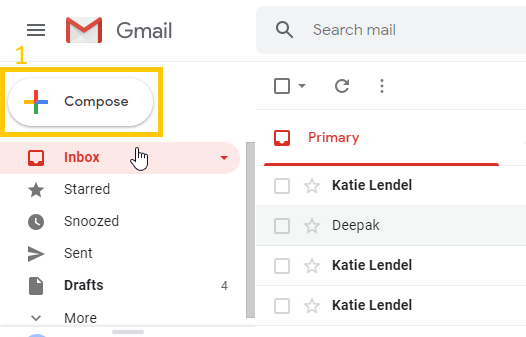
Step 1: Open your Gmail account of your PC browser and click on Compose.

compose a confidential email

Step 2: Compose the email which you want to send and click on Turn on confidential mode.

send a confidential email in gmail

Step 3: Set an expiry date for the email. After the completion of expire date, the email gets vanish from the receiver Gmail inbox.

set expiry date confidential email

Step 4: Choose any one Passcode mode-
  • No SMS Passcode- Recipient well able to open it directly.
  • SMS Passcode- Enter recipient proper phone number (not your  phone number) because recipient have to feed an OTP from the given number to read the email.
set passcode for confidential email


Step 5: Click on Save.
Step 6: Enter the recipient phone number and click on Send

recipient mobile number for confirm code


The recipient will get a confidential email like this (shown in the picture below) and have to verify identity.

open confideential email

You can also remove the access of the confidential email at any time you want even before the expiry date. To do so-

O1. Open your Gmail.
02. Click on Sent on the left side.
03. Open the confidential email section.
04. Click on Remove access.

Conclusion

The recipient of the confidential email cannot download, copy, forward or print the confidential email but one can take a screenshot or photo of that email.

Google rolls out new Gmail Search Filters making it easier to search your emails.

Gmail Search Filter

Gmail rolls out new updates adding a search filter for allowing users to narrow down the search results and help them to find a specific email more quickly. The new search filter for Gmail which Google calls “search chips” will appear just below the search box when you search for a particular keyword.

The new “search chips” feature for Gmail has many filter options to choose from, like ‘has attachment’, ‘To me, ‘Advanced search’, and many more. 

Here are the Gmail search chips filter options and their uses:

Any time: This filter option help you deciding how older the email in which you are searching now. There are options to choose from like older than a week, older than a month, older than 6 months, or older than one year.

Has attachment: This filter option helps you to separate those email which has some attachment files like spreadsheet or PDF in it. Earlier this feature was present accessible through Advanced search options in Gmail.   

Is Unread: This feature as the name suggests marks those emails which you haven’t read yet.
 
Gmail search chips
Gmail Search Chips

The filters options can be used in combination to narrow down the searches like if you know how older the email is and having some attachment files in it then you can use the ‘Any time’ and ‘Has attachment’ filter options to get the search result more quickly.

As Google acknowledges that, “we’ve heard from our users that searching in Gmail could be faster and more intuitive”. When the company first announced this “search chips” feature, there was no clarity about it would roll out for non-G Suite customers, but now the feature is live and available for all.

How To Log people out of your Google account.

Log people out of your Google account.

If you’re worried that someone might be reading your email – be it your spouse, your boss or the government – Gmail can reassure you and let you log out remotely. 

In your browser, scroll to the bottom of the Gmail page and click the tiny Details the link belowLast account activityin the bottom-right corner. This tells you if your account is open in another location and displays a list of recent activity, including the access type (such as browser or mobile) and IP address. 


Click the ‘Sign out of all other sessions’ button to log out from all other locations apart from your current one. Because your Gmail address is now used across all Google services, clicking this button will also sign you out of Search, Drive and more. 


On YouTube, click the cog icon in the top-right corner, select ‘YouTube settings’ and click the Advanced link below your name and email address. Click ‘Sign out of all YouTube sessions’ to stop anyone using your account.

How To Delete Your Google Account Permanently?

If you use multiple Google Accounts then there might be a chance that you have a few Google Accounts that you are not using anymore but still, exists. Google gives you the option to delete your Account and d permanently and if you want you can also save your existing data stored in different services of Google like Gmail, Google Drive, YouTube, Google Maps, etc.

Follow the steps given below to Delete your Google Account:

  • Open your Google Account in your browser. 
  • Click on Data & Privacy option from the left panel and scroll down on that page to move to the More Options section.
Google Account
  • You see the option to Delete your Google Account, click on it and it will redirect you to the next page. 
  • Google will give you the option to Download all your data related to that Google Account. Click on Download your data to choose that option.
Option to Delete Google Account


  • Scroll completely down to acknowledge and check both the check-box and finally click on Delete Account.
Deleting Google Account Forever
  • You will see one last message from Google saying "Your Google Account and all its data have been deleted". You will also get one last chance to recover your account if you change your mind at the last moment. 
Message after Deleting Google Account

So this is the complete process of deleting your Google Account permanently forever. But make sure to check your Gmail Account and Google Drive first before deleting the Account for downloading all required data. 

Google Unveils Gemini Ultra: Rebranding Existing Chatbot Bard.

Gemini Google Most Capable AI Model

In a long-anticipated move, Google has officially launched Gemini Ultra, a revolutionary version that powers Gemini Advanced. This new iteration promises an enriched user experience, excelling in reasoning, instructional guidance, coding support, and collaborative creativity. Simultaneously, Google announced the rebranding of Bard to simply "Gemini," signaling a comprehensive upgrade in its AI offerings.

Gemini Advanced transcends traditional AI capabilities, positioning itself as a personalized tutor capable of generating custom step-by-step instructions, sample quizzes, and engaging in dynamic discussions tailored to individual learning preferences. For coding enthusiasts, the chatbot becomes an invaluable companion, adept at handling advanced coding scenarios, providing ideation support, and assisting in the evaluation of different coding approaches.

How to Access Google Gemini? 

To access Gemini Advanced, users can subscribe to the Google One AI Premium Plan, priced at $19.99 per month, featuring a complimentary two-month trial. This plan not only unlocks the latest AI advancements but also includes the benefits of the existing Google One Premium plan, offering 2TB of storage.

AI Premium subscribers are set to enjoy additional perks, with upcoming access to Gemini integration in Gmail, Docs, Slides, Sheets, and more, formerly known as Duet AI. Gemini Advanced is available for users in over 150 countries and territories in English, marking a global expansion of Google's advanced AI offerings.

Mobile App for Google Gemini.

Google has introduced a dedicated mobile app for Gemini on both Android and iOS platforms. The Gemini app for Android is currently available on Google Play, initially supporting English with plans to introduce Korean and Japanese language support next week. By downloading the Gemini app or opting in through Google Assistant, users can seamlessly access the new overlay experience, whether through the app or other activation methods like the power button, corner swiping on select phones, or using the "Hey Google" command.

On iOS, the introduction of Gemini access is slated for the coming weeks within the Google app. Users can effortlessly toggle the Gemini feature, engaging in conversations to boost creativity, generate custom images, seek assistance in writing social posts, and even plan activities – all directly from the Google app.

Google's Gemini Ultra marks a significant leap forward in AI capabilities, offering a multifaceted approach to learning, coding, and creative collaboration. The integration of Gemini across platforms reflects Google's commitment to providing users with a seamless and advanced AI experience, pushing the boundaries of innovation in the digital landscape.

Different Types of Machine Learning System.

Data Mining is a process of applying ML techniques to dig into large amounts of data can help to discover patterns that were not immediately apparent.


Types of Machine Learning System:

Machine Learning system can be classified according to the amount and type of supervision they get during training.


Supervised learning: In supervised learning, the training data you feed to the algorithm includes the desired solutions, called labels.

supervised learning

Spam Filter of your Gmail Inbox is a good example of this, as it is trained with many emails (spam & ham) and it must have to learn how to classify new emails.

A typical supervised learning task is classification.


Some important supervised learning algorithm:

  • K-Nearest Neighbors.
  • Linear Regression.
  • Logistic Regression.
  • Support Vector Machines(SVMs).
  • Decision Trees.
  • Random Forest.
  • Neural network.

Unsupervised Learning: In unsupervised learning, the training data unlabeled and the system try to learn without the teacher.


Some important unsupervised learning algorithm:

  • Clustering.
  • K-Means.
  • Hierarchical Cluster Analysis(HCA).
  • Expectation-Maximization.
  • Visualization and dimensionality reduction.
  • Principal component analysis(PCA).
  • Kernel PCA.
  • Logical Linear Embedding(LLE)
  • t-distributed Stochastic Neighbor Embedding(t-SNE).
  • Association rule learning.
  • Apriori.
  • Eclat.
unsupervised learning

For example Grouping the visitor of your blog into a different group like 40% of visitors are male who likes cricket and 20% of men like football. You don’t even have to tell which group visitors belongs to, the clustering algorithm finds those connections by themselves.


Semisupervised Learning: In this, the algorithm has to deal with lots of unlabeled data and a little bit of labeled data.


Google Photos are good examples of semisupervised learning. After uploading the photos, it automatically recognize if a person is present in many different photos now you just have to tell who these people are. One label per person and later it will help you search for photos.  


Most of the semisupervised learning algorithms are a combination of supervised and unsupervised algorithms.


Reinforcement Learning: The best example of a reinforcement learning algorithm is a robot learning how to walk. The robot observes the environment, select and perform an action and get rewards or penalties, and base on this the robot decide what to do and what not to do.  

reinforcement learning

Another criterion used to classify Machine Learning systems is whether or not the system can learn incrementally from a stream of incoming data.


Batch Learning: In batch learning, the system is not capable of learning incrementally with time. As it takes a lot of time and computing resources so the entire process is done offline. First, the system is trained, and then it is launched into production and runs without learning anymore. It is also known as offline learning.


Online Learning: In this algorithm, you train the system incrementally by feeding data continuously, either individually or by small groups called mini-batches. The best use of this learning is for stock prices where data change rapidly.


Machine Learning system is also categorized base on generalization:


Instance-based learning: In this learning, the system learns the old examples by heart then generalizes to new cases using a similarity measure.


Model-based learning: In model-based learning, we build a model of these examples then use that model to make predictions.  

How To Change The Login Email Address of a Blogger (Blogspot) Account.


blogger gmail change

Changing the blogger email address or moving one blogger account to another email address is not a one-step process and blogger does not permit to it directly but still, there is a way by which you can change your email address for the blogger account.

There are many possible reasons for which you want to change the email of your blogger account.

Some Possible reasons are that-


  • Most of blogger start there blog with a random email address and later they think that the email address should match the blog niche. You want to change the email address because you want to match your email Address with the blog niche.


  • You create a blog and after running it for a few months, you got a buyer and to change the ownership of that blogger account, you want to change the email address with your buyer email address.


  • You are running multiple blogs and finding it difficult to manage all with the same email id. To manage your different blogs with different email id.

How To Transfer one Blogger Account to Another Email Address.

Before starting the process, let us consider that you want to move a blogger account from Email A to Email B.

Here are the following steps to do so-


Step1: Open your blogger account and select the blog for which you want to change the email (Email A) then go to Settings > Basic. Under Basic settings, scroll down and move to Permissions then click on +Add Authors.

logger

Step 2: Add another email Id (Email B) to which you want to move this blogger account and click on Invite authors.

blogger author

Step 3: Open the other email account (Email B) in a different browser or device. Now open the email that you got and click on Accept invitation. After clicking on Accept invitation button, you will redirect to blogger account.

blogger email change

Important note:
Perform this entire process with two different browsers, one browser login with Email A and another login with Email B. You can also use two different devices.

Step 4: Inside the blogger account, check the email shown there (should match with Email B) and click on Accept invitation button once again.

move blogger account

Now you can see that the blog is added to the blogger account in which you want to add but as an author profile and you are not getting the complete access of the blog. To get the complete access of the blog and remove the same blog from the previous email address (Email A), continue the steps shown below-

Step 5: Open the previous blogger account (Email A), go to Settings > Basic > Permissions. Select the new email address which is added there and select Admin from the drop-down menu.

blogger admin setting

Step 6: Now open another blogger account (Email B) and go to Settings> Basic> Permissions section, remove the email address (Email A) by clicking on the cross button.

admin setting

This is the complete process by which you can change the email address of a blogger account or move one blogger account to another.

Suggestion

My small suggestion is if you want to change the email address of your (Blogspot) blog then try to change it in earlier days of your blogging because once you start with a blog, your visitors getting connected with your email, your Adsense account and many more things are there and changing the email address at that time also follow the same process but may affect you a lot.

DON'T MISS

Nature, Health, Fitness
© all rights reserved
made with by AlgoLesson