How To Automatically Lock Your Windows PC When you Go Out of Its Range.

Automatically Lock Your Windows PC

If you work in close proximity to other people and value your privacy, you should always lock your computer by pressing Windows+L whenever you leave it unattended. If you find you often forget to do this, you could use your phone as a proximity key, to automatically lock Windows when you step away from your computer.

How To Automatically Lock Window Computer.

This automatically locking trick uses your phone as a trigger and when your phone goes out of the Bluetooth range, your PC gets locked.

In the Settings app, open Devices and Select ‘Bluetooth & other devices’. Turn on Bluetooth on the computer and your phone, and pair the two devices.

Bluetooth device


Then go to Settings, Account, ‘Sign-in options’ and scroll down to ‘Dynamic lock’.

Tick the box next to ‘Allow Windows to lock your device automatically when you’re away’. Your phone will be added to the setup.

lock your device automatically


Assuming you always keep your phone on you, Windows will lock your PC when you walk out of Bluetooth range. 

How To Enable and Disable Windows Defender Firewall.

Enable and Disable Windows Firewall.

The Windows Firewall is for helping you to keep unauthorized users away from accessing your files and resources on your PC. It is a very important feature of Windows for your computer safety.  

If you don’t have a firewall enabled as part of a paid-for security suite, it’s essential to get the Windows version configured. A firewall keeps out any hackers and malware that try to gain access to your computer through the network, so you should have a firewall enabled by default.

You can check this from the Control Panel. Open Windows Defender Firewall (it used to be Windows Firewall). If it says ‘These settings are being managed by vendor application’ followed by the name of your security software, then everything’s fine. Otherwise, turn it on for Private and ‘Guest or Public’ network.

Enable Firewall in Windows 10.

If your Windows Firewall is not enabled by default then you must enable it. Click the Window key and search for ‘Windows Defender Firewall’ and then press Enter.

Turn on Windows Defender Firewall.

Click on Turn Windows Defender Firewall on or off on the left side of the screen under Control Panel Home.

Turn Windows Defender Firewall on or off

You will get a Customize Settings window, check the circle box to Turn on Windows Defender Firewall for both public network and private network separately. At last click on OK to finish.

Enable Windows Defender Firewall

If you’re having trouble setting up a wireless printer, streaming to a Chromecast, or connecting to another PC or other network device, it may be because the firewall is blocking you.

You can temporarily disable it again after everything is set up and you know it’s working. 

How To Change to Public or Private Networks in Windows 10.

Difference Between public or private network.

When you connect your Windows 10 PC with any Wi-Fi network then Windows classifies a network as either ‘public’ or ‘private’ and uses this classification to apply security features, such as the firewall, and the sharing of hard drives, folders, printers and so on.

Now, the question may come to your mind that what is the difference between ‘public and private’ networks and which network mode you should use. In this article, I am going to answer all your doubts related to this.  

Difference Between Public and Private Network in Windows 10.

Private networks have all sharing options enable, while public networks disable anything that might be a security threat.

Public network hides your PC from other devices on the network and you can’t be used for printers and file sharing. Use this for the networks you connect to when you’re out and about, such as a Wi-Fi network at a coffee shop.

Private network mode is for the network you trust on, such as home or work. In this network, your PC is discoverable to other devices and can be used for printer and file sharing if you set it up.

Change Public or Private Networks in Windows 10.

When a computer connects to a network, the appropriate public or private settings are selected. If you are having problems with sharing files or connecting to printers, it may be because the public network settings have been activated, which locks everything down.

In Windows 10, open Settings (Windows+i) and click ‘Network & Internet’.

Network and Internet

Select ‘Wi-Fi’ on the left, then click the network you’re connected to on the right.

Wi Fi Settings Public or Private


If you’re at home and you trust all the other devices and people that might be connected to your network, select Private in the ‘Network profile’ section. 

Public or Private Networks in Windows

How To Remotely Shut down a PC using Windows Command Prompt.

You can shut down all your PCs from a single Command Prompt window. You’ll need to change a few settings in advance, through.

On any PC you want to shut down remotely, click Start, type ‘services.msc' then press Enter.

Windows Services


Right-click the Remote Registry, select Properties, then select Automatic in the ‘Startup type’ menu and click OK.

Remote Registry


Remote Registry

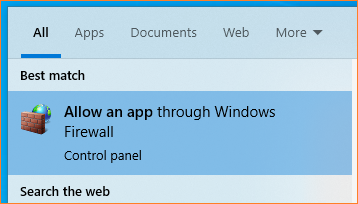
Now click Start again, type allow an app, and press Enter. This will open your Firewall settings.

Firewall settings


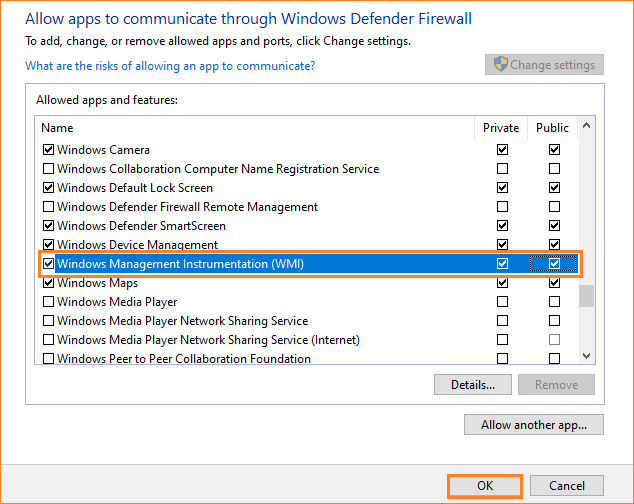
Click ‘Change settings’, scroll to Windows Management Instrumentation (WMI), then tick the box to the left of it and click OK.

Windows Management Instrumentation


Now, on your controlling PC(s), open Command Prompt and type shutdown /i. This will launch a Remote Shutdown box.

Remote Shutdown Dialog


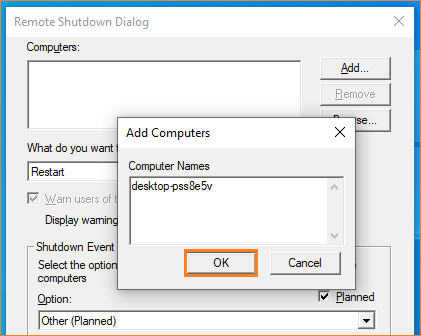
Click Add, then type the IP address or hostname of the other computer then click OK.

Remote shutdown dialog box

Note: Hostname is a name given to a computer to identifies them on your network. To know your hostname, type ‘hostname’ in Command Prompt, then press Enter.

Select Shutdown in the ‘What do you want these computers to do’ menu, type a message that will appear on the PCs you’re shutting down, then click OK.

Remote Shut down


You’ll need to be signed in to Windows with an administrator account on all computers for this to work.

Type Diacritics and Symbols Using Keyboard and Character Map in Windows.

Diacritics are accents and flourishes, é and Ù for example help guide pronunciation, while symbols are commonly used pictograms such as © and TM that often are not spoken but have specific uses in written text.

In many cases, they are available directly by combining Alt Gr (to the right of the space bar) with a shortcut key. So, Alt Gr+C gives you ©, Alt Gr+T produces TM and Alt Gr+R result in ®. Your keyboard may also be marked with accented characters, which are accessed in the same way.

Note: You can use Ctrl + Alt instead of Alt Gr. It works for all special characters on your keyboard.

On our keyboard, combining the vowel keys with Alt Gr lets us type á, é, í, ó, and Ú, while using it with the 4 key gives us the  symbol.

Character map Windows.


If the character you need isnt available directly, press Start, type map, and click "Character Map". This shows all the characters available in each of your installed fonts. You just have to click the one you want, followed by Select and Copy. Now switch to the program in which you want to use the copied character and press Ctrl+V to insert it.

Follow Raveling Tech on Facebook and Twitter for more such technology related posts.     

How To Hide and Reveal Drives in Windows File Explorer.

Hide and Reveal Drive.

Windows automatically assigns letters to your drives and partitions. But there may be a situation where you don’t need a drive letter-for example, should you want to ‘hide’ a drive from other users of your PC. Or, if you’re using a dual-boot system, you can hide your other operating system partition so it doesn’t show up as a drive within File Explorer.

Hiding the entire Drive is a good practice if you want to hide many files from the users of your PC. You can put all your secret files together in a specific Drive and hide the entire drive. 

Hide Drive Using Command Prompt.


To do this, click on Start and search for cmd, right-click on the Command Prompt option shown as a search result, and click on ‘Run as administrator.

Run cmd as administrator.


Now, use the ‘mountvol’ command, followed by the letter of the drive you want to hide, then the /d switch. For example, to hide a G drive, enter mountvol G: /d.

mountvol G: /d


After this, press Enter, and your chosen drive will be hidden from File Explorer.

There are many different ways to hide the drive in Windows but you have to go through so many steps which we have done in just one step using Windows Command Prompt.

Reveal Hidden Drive in Windows.


You can also reverse the process using Windows’ Disk Management tool.

Right-click Start and select Disk Management, then scroll to the drive you need to reassign a letter to in the Volume list in the top pane.

Right-click it and select ‘Change Drive Letter and Paths’. (“New Volume” without any letter assigned to it is your Hidden Drive).

Change Drive Letter and Paths.

Click Add, select the letter you want from the drop-down list, then click OK.

Assign Drive Letter.


Now you can see that hidden drive in your Windows File Explorer. You do this trick and keep your private files hidden from the other users of your PC. 

How To Turn any Folder into a Drive using Windows Command Prompt.

Virtual Drive

Windows only recognize partitions or physical drives as separate drives. However, using the ‘subst’ command you can turn any folder into a virtual drive that shows up with its own drive letter in File Explorer.

This is useful if, for example, you have a folder with specific types of files, such as pictures, or videos that you want to treat as a separate drive, for example. It also helps you to manage your files better in Windows PC.

To do this, type subst, followed by the drive letter you want to use, then the path of the folder. So typing subst G: C:\Users\Username\Videos (replace Username with your Windows account name) will create a virtual drive dedicated to hosting the contents of your Videos folder.  

Virtual Drive


If you want to remove the virtual drive, simply type subst, followed by the drive letter, then the /d switch-so, in my example above, typing subst G: /d will remove the virtual drive, but the contents will remain intact in its original location (C:\Users\Username\Pictures in this case).

How To Open Your WiFi Router’s Settings .

Router Settings.

There are so many changes that you can make through router’s settings like changing your network name, changing network password, creating a guest network, changing security settings, and many other options.


The process for accessing your router’s settings is the same for most makes and models, but there are some exceptions. In most cases, you just type the relevant router-settings address (or the router’s IP address) in your web browser. This can usually be found somewhere on the router itself (check the underside) or in the manual.

Find the Router’s IP Address.

192.168.1.1 is the IP address of most of the routers but it is not the same for all. You can confirm your router’s IP address using Windows Command Prompt.

Press Windows key, type cmd in the search box, and press Enter. Inside Command Prompt Window, type ipconfig and press Enter.

ipconfig


Scroll through the result until you find an entry named ‘Default Gateway’ and the number listed next to it is your router’s IP address.   

Router IP

You can try connecting to your router via HTTPS rather than HTTP (https://192.x.x.x.) because this is more secure, but you may find the protocol isn’t supported by less security-conscious manufacturers.

Find Wi-Fi Router’s Password. 

The username and password you need to log in should be printed there on the router itself unless you’ve already changed these details.

If you have never changed the router’s login detail, they will be ‘admin’ for username and ‘admin’ for a password. These are the default username and passwords for all routers but you should change the default admin password of your router.

If you are not going to change the default password, then someone can easily walk up to your router settings and can access your personal information without you knowing about it.

Suppose, In case, you have changed the router default password and now you don't remember your WiFi router password then you can refer to my blog post on how to recover forgotten WiFi passwords. In that post, I have explained how you can check your wireless network name and recover your password using Windows Command Prompt.

Different Router’s IP Address example.

For example, the address for Virgin Media’s Super Hub is http://192.168.0.1 or 192.168.100.1, if you’re using Modem Mode). You’ll find detailed instructions for it at bit.ly/vhub468.

For BT’s Smart Hubs, the address is 192.168.0.1, and TalkTalk’s Wi-Fi Hub settings can be accessed at 192.168.1.1.

Some standard IP addresses are:
  • Apple: 10.0.1.1
  • ASUS: 192.168.1.1
  • Belkin: 192.168.1.1 or 192.168.2.1
  • D-Link: 192.168.1.1 or 192.168.0.1
  • Linksys: 192.168.1.1 or 192.168.0.1
  • Netgear: 192.168.0.1 or 192.168.0.227

DON'T MISS

Nature, Health, Fitness
© all rights reserved
made with by AlgoLesson